|
|

 Case Type rules
 To enable the functionality described here, include the Work-.pxWhereAmIChevronView section in your work harness.
Complete the Stages tab to create a work status-based "Where-am-I" graphical display on user forms. A horizontal array of read-only chevron images (  ) presents the user with a high-level view tasks that must be performed in order to resolve the case. The array provides a breadcrumb trail; highlighted chevrons indicate stages that have been completed.
The Stages display make it easier for users to understand and communicate what work has been done and remains to be done. As a best practice, define stages that are most important or relevant to the users; you do not need to define stages for all the work status values in a process.
 You can also configure stage views from the Case Management landing page using the Stages item on the Case Designer Details tab.
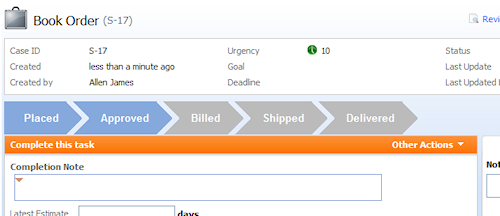
A stage is:
- Represented by a status group field value (Work-.pyStatusGroup) or text constant that appears as a label on a chevron.
- Associated with one or more work status field values (Work-.pyStatusWork).
Building stages
Stages are numbered sequentially from top to bottom on this tab. Order is significant. The first chevron (stage) appears on the left side of the array, the second chevron appears to the right of the first, and so on. The order represents a single process path; you cannot split the array for two or more actions leaving a shape.
Do not confuse these chevrons with the Where-am-I? icons (  ) or (
 ) on user forms and work lists, which open the process diagram and identify the current assignment with a Where-am-I? golden arrow. The diagram displays, in detail, all the process steps, not only the stages you define on this tab.
Before you begin, open the flow's process model and make sure that the shapes you will be defining as stages have Work Status values on the Status tabs on their properties panels.
To create a stage, do the following: In the field beneath the Stages heading, select a field value with a Field Name key part of .pyStatusGroup and an Applies To class of this case type, or enter a text constant. This value labels the chevron.
- Add a row (
 ) beneath the Work Status heading.
 - Select a .pyStatusWork field value that you want to associate with this stage.
- Add rows if you want to associate multiple status field values with this stage.
- To create additional stages, click the add row button () beneath the last stage. You cannot use a stage name (text or field value) more than once, or assign a work status field value to more than one stage.
To rearrange the order of stages, use the mouse pointer to grab the numeric row header and move it up or down.
To display the chevrons as they appear on the user form, click Preview.
 | action section, cover, instantiate, status |
 | About flows Process and Rules category — Case Management page |
 About Case Type rules