
Conversation

Pegasystems Inc.
PL
Last activity: 23 Jan 2026 6:48 EST
CRUD Operations for Operator Records via Landing Page
Purpose and Design Considerations:
Whenever a new Data Type is created in Constellation application, it is an easy process to configure a way to maintain records of this Data Type: the Data Pages to browse, query and save the records are already in place. The properties defined on the Data Type, are ready to be used in list views and landing pages. And OotB views for Create and Edit actions are in place.
For some of already existing classes – Operators, Work Queues, Organization etc. it is also possible but requires a few extra steps. In this article, we will show an example of configuring CRUD operations for Data-Admin-Operator-ID class, but similar approach can be employed for other objects as well.
Let’s consider a customer service setting, where business administrators need to quickly update operators' language or technical abilities. This will ensure that support tickets are routed to employees who are best equipped to assist customers, improving response times and customer satisfaction.
Platform Version: The implementation steps described below are based on Pega Infinity 25.1. We may need more configurations for the older versions.
Implementation:
Our goal is to configure a Landing Page where all Operators will be listed, and administrators will be able to create new records and modify the existing ones.
1. Add Operator class as an existing Data Type
To make the configuration AppStudio and Constellation ready, we need to add the Data-Admin-Operator-ID class as a Data Type to our application
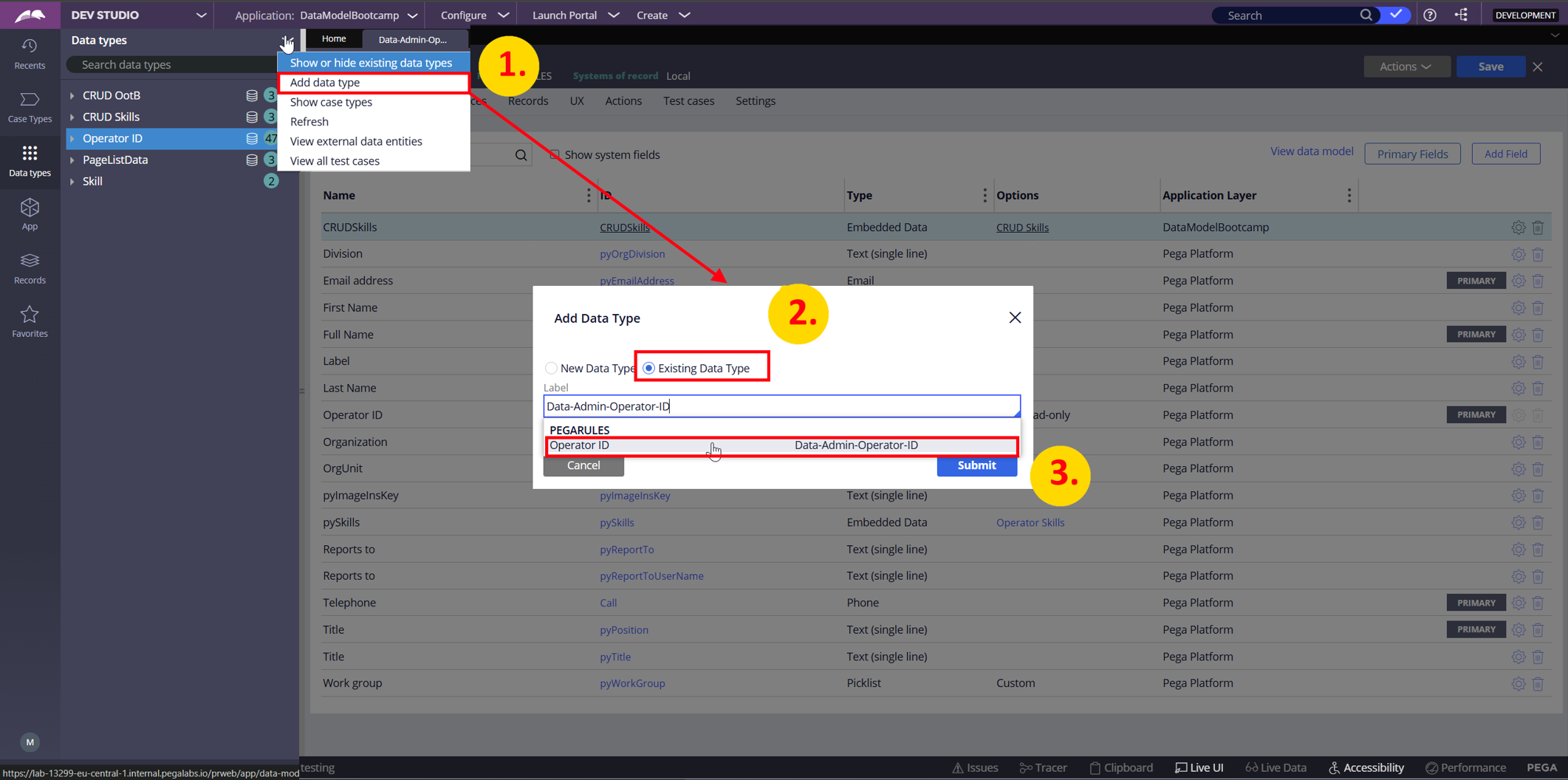
This will result in the class being added to the Application definition as well:
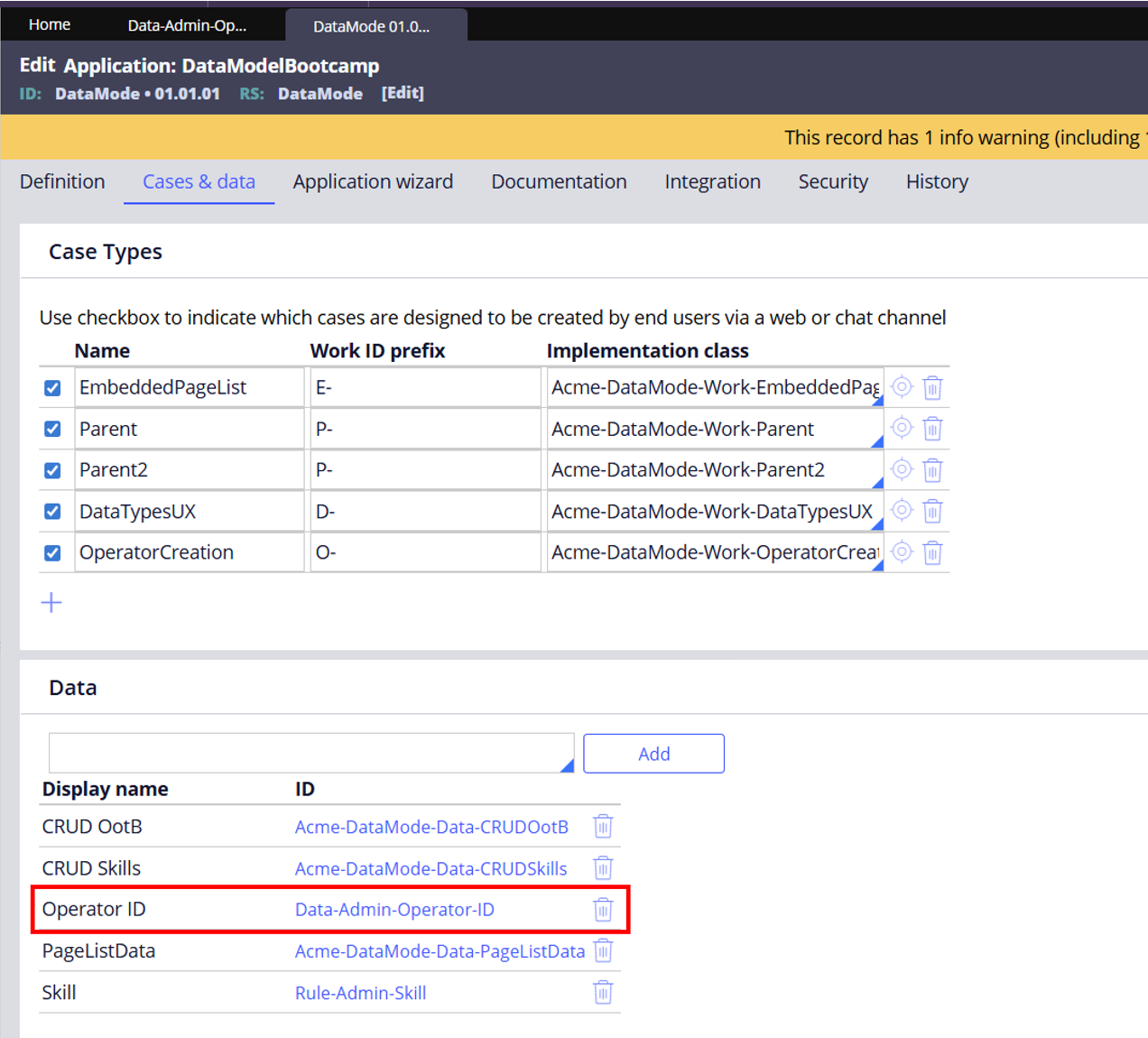
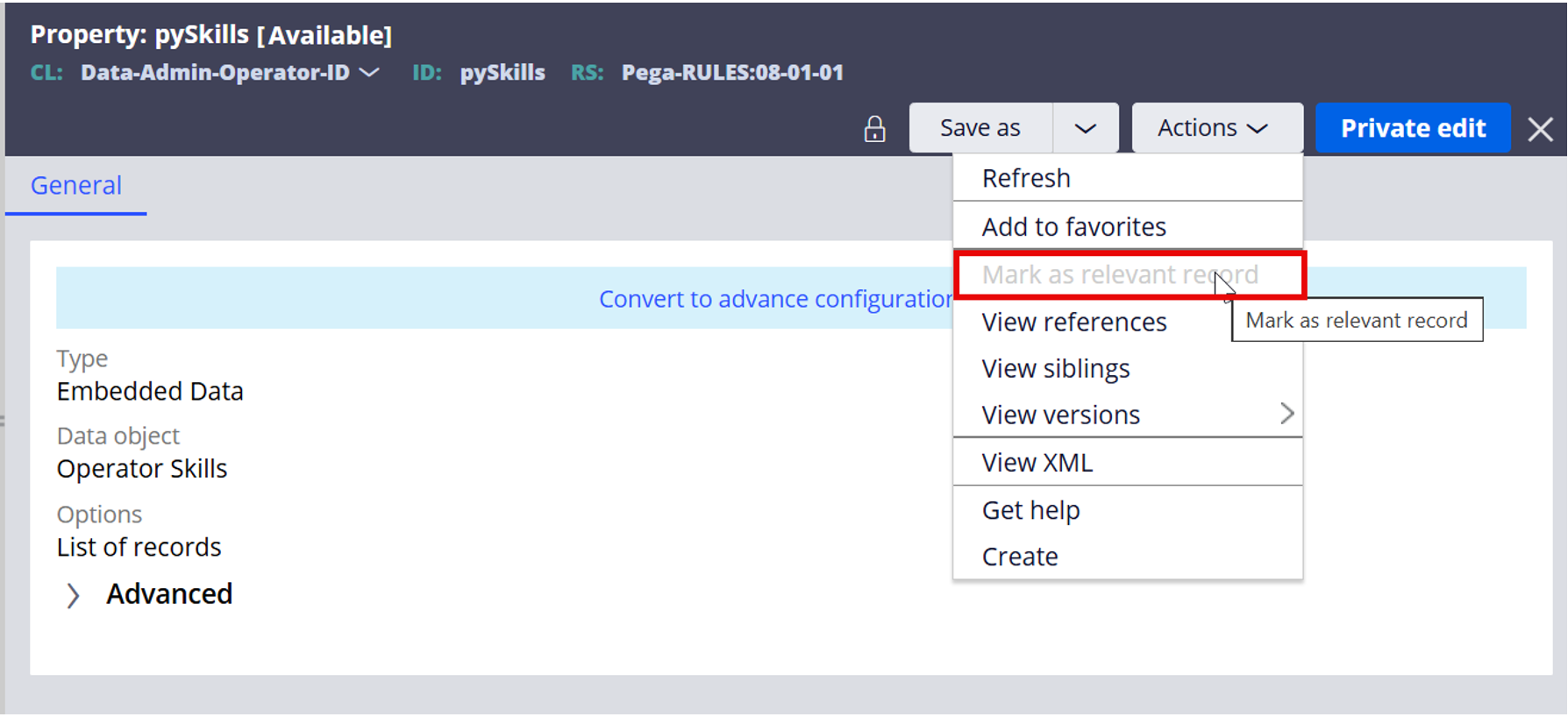
2.Set properties as Relevant
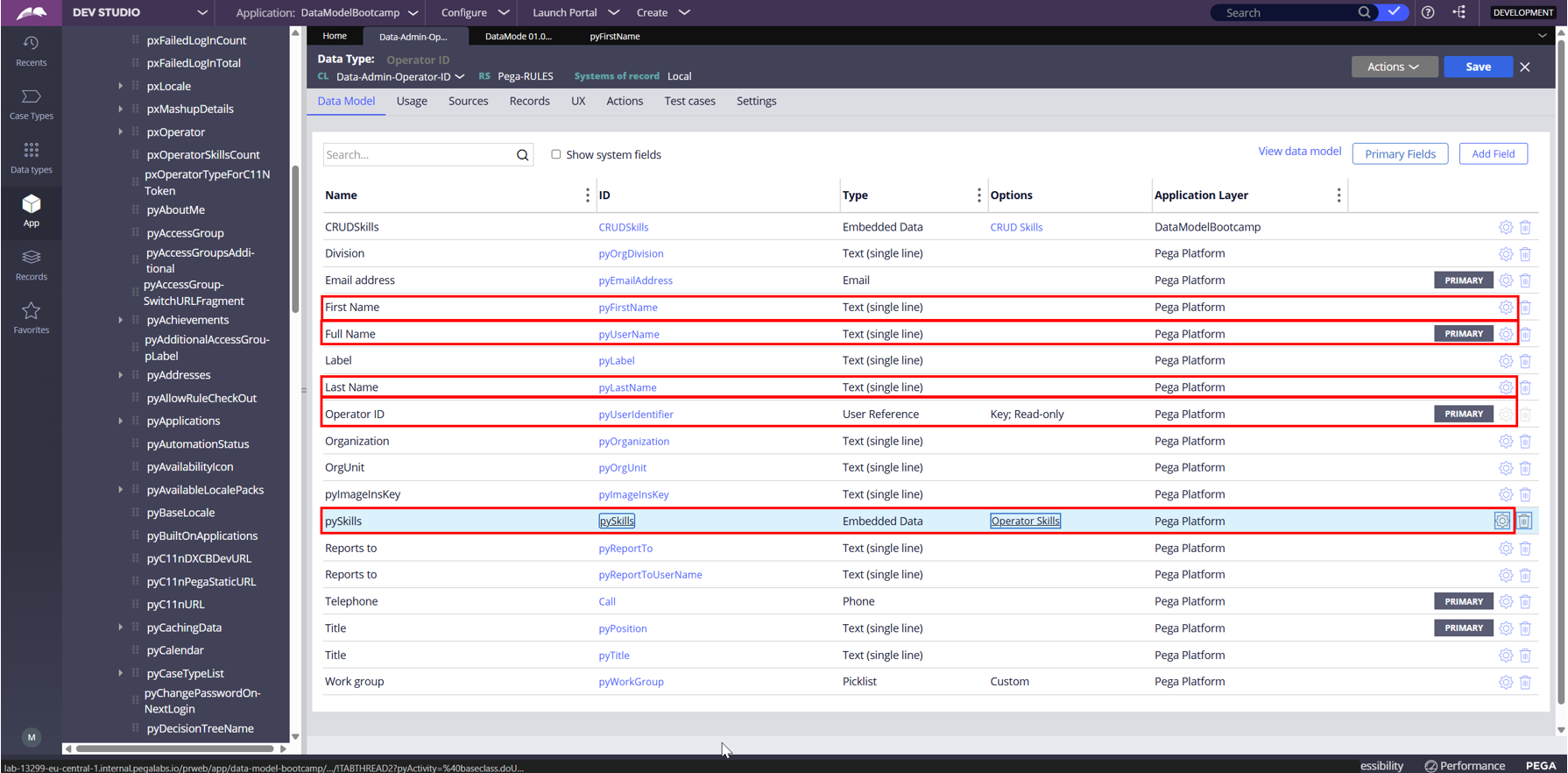
We need to add properties we want to configure on the View to Relevant Records:
For our example, we will use First Name, Last Name, Operator ID, pySkills. As you can see, the Operator ID is added as User Reference and pySkills as Embedded Data:
3. Set Skills helper class and add Rule-Admin-Skill as Data Type
The pySkills property is a PageList property of class Embed-Data-Admin-Skill. Unfortunately, this class is not Constellation ready. In order to configure the Skills in AppStudio, we will need to introduce a new helper Data Type: CRUDSkills:
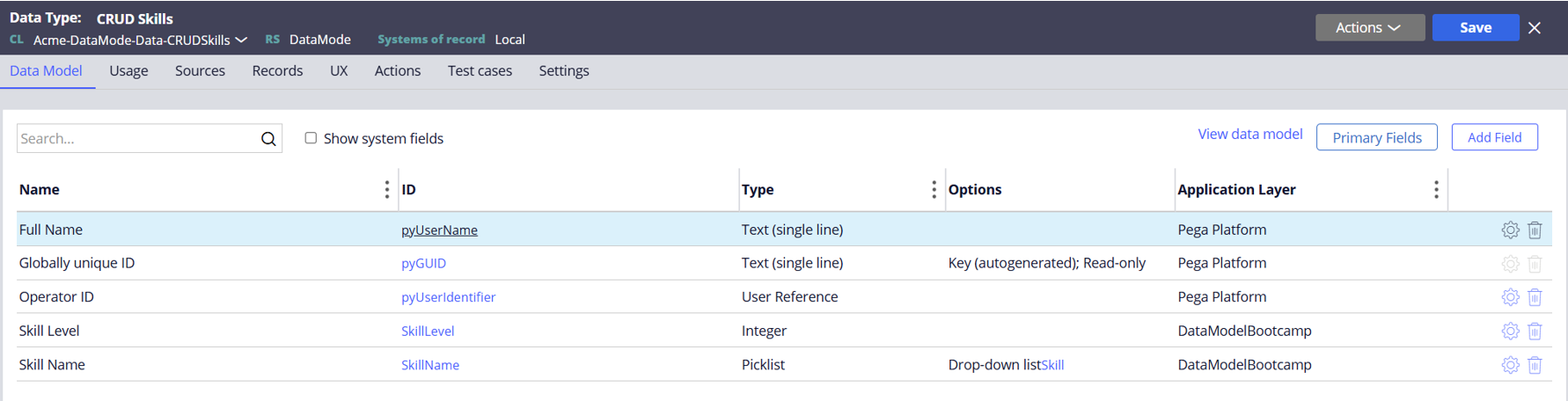
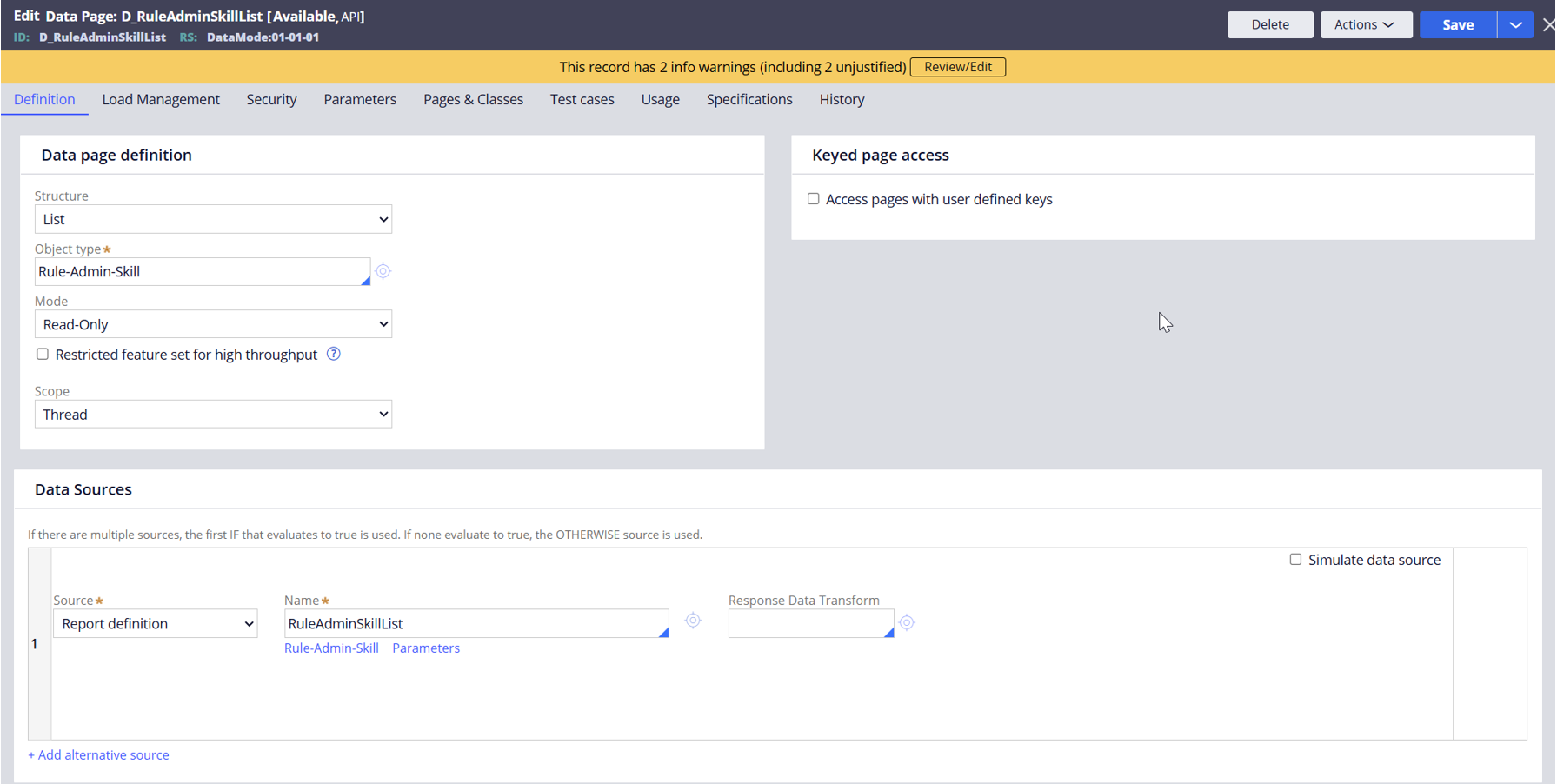
As you can see, the Skill name is a Drop-down property – using values from Rule-Admin-Skill product class. To re-use the existing skill list we need to add a PageList DataPage to this class:
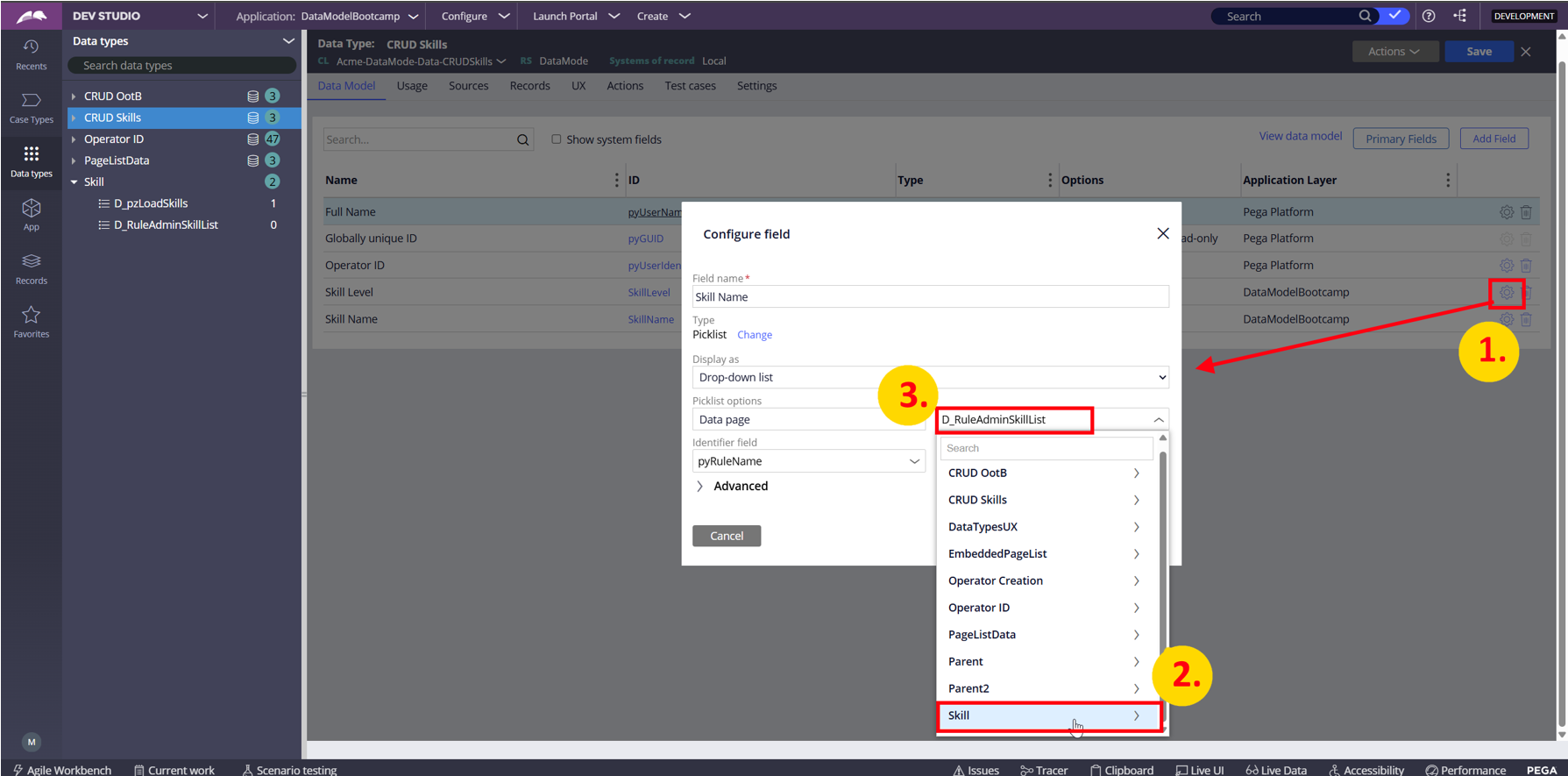
Next, we add the class as an existing Data Type to our application – so that the class and DataPage become configurable in our CRUDSkills Data Type:
4. Set the Data Pages for browsing, lookup and modifying
Next, we need to create 3 Data Pages for Data-Admin-Operator-ID class:
1. PageList query DataPage: D_OperatorCRUDList
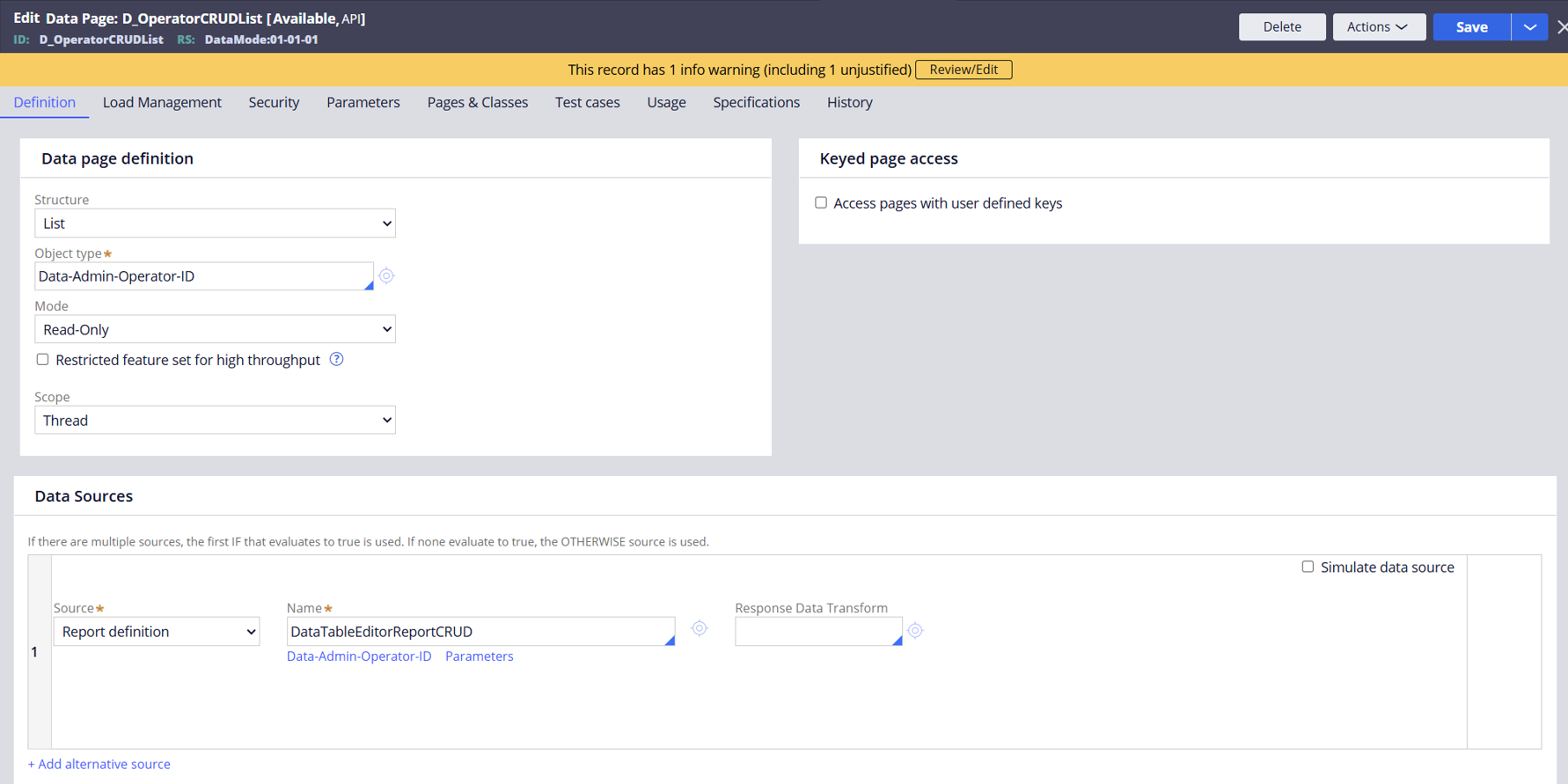
Sourced from a Report and with “Allow querying any column (Pega connection only)” enabled:

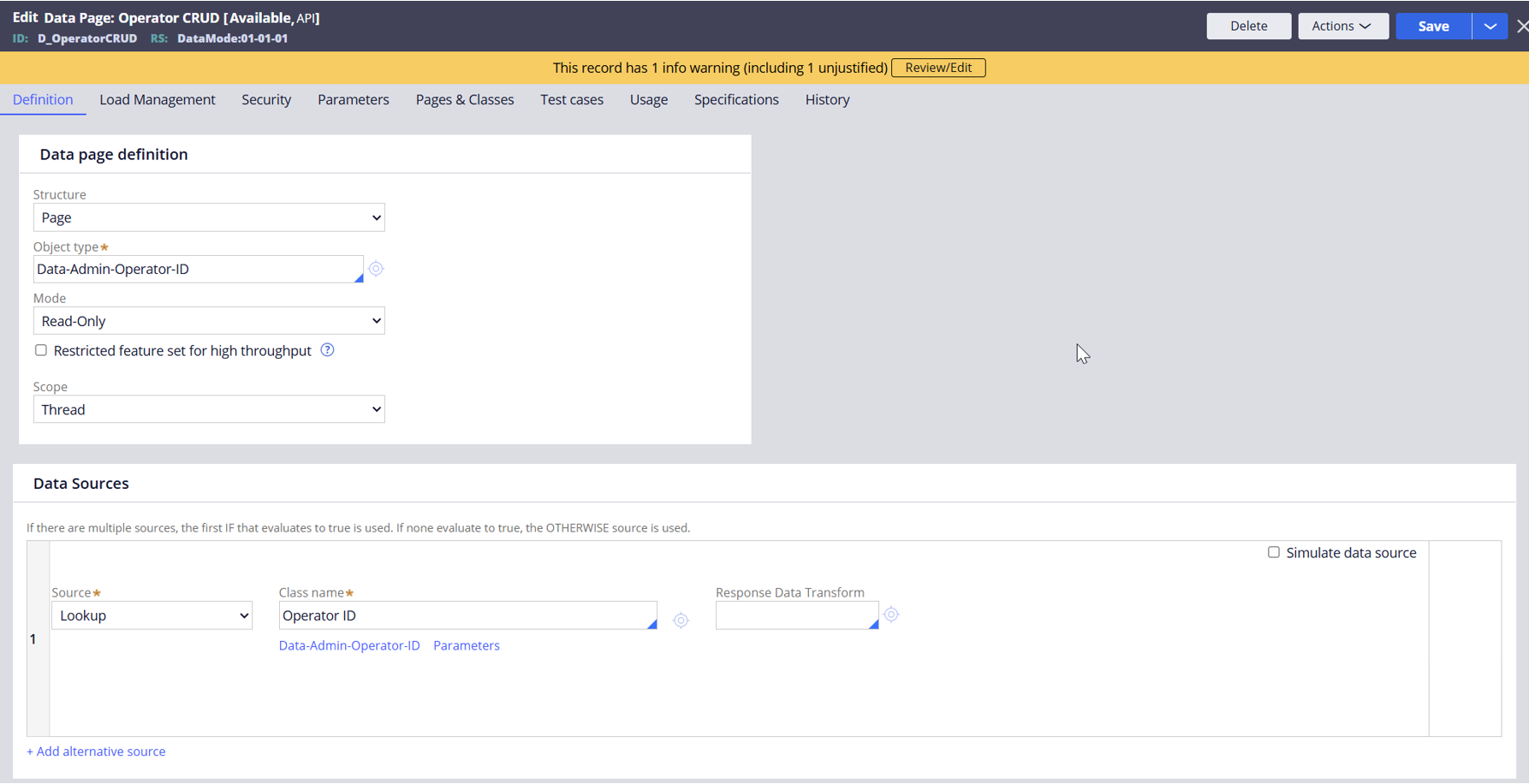
2. Lookup DataPage: D_OperatorCRUD
3. Savable DataPage: D_SavableOperatorCRUD
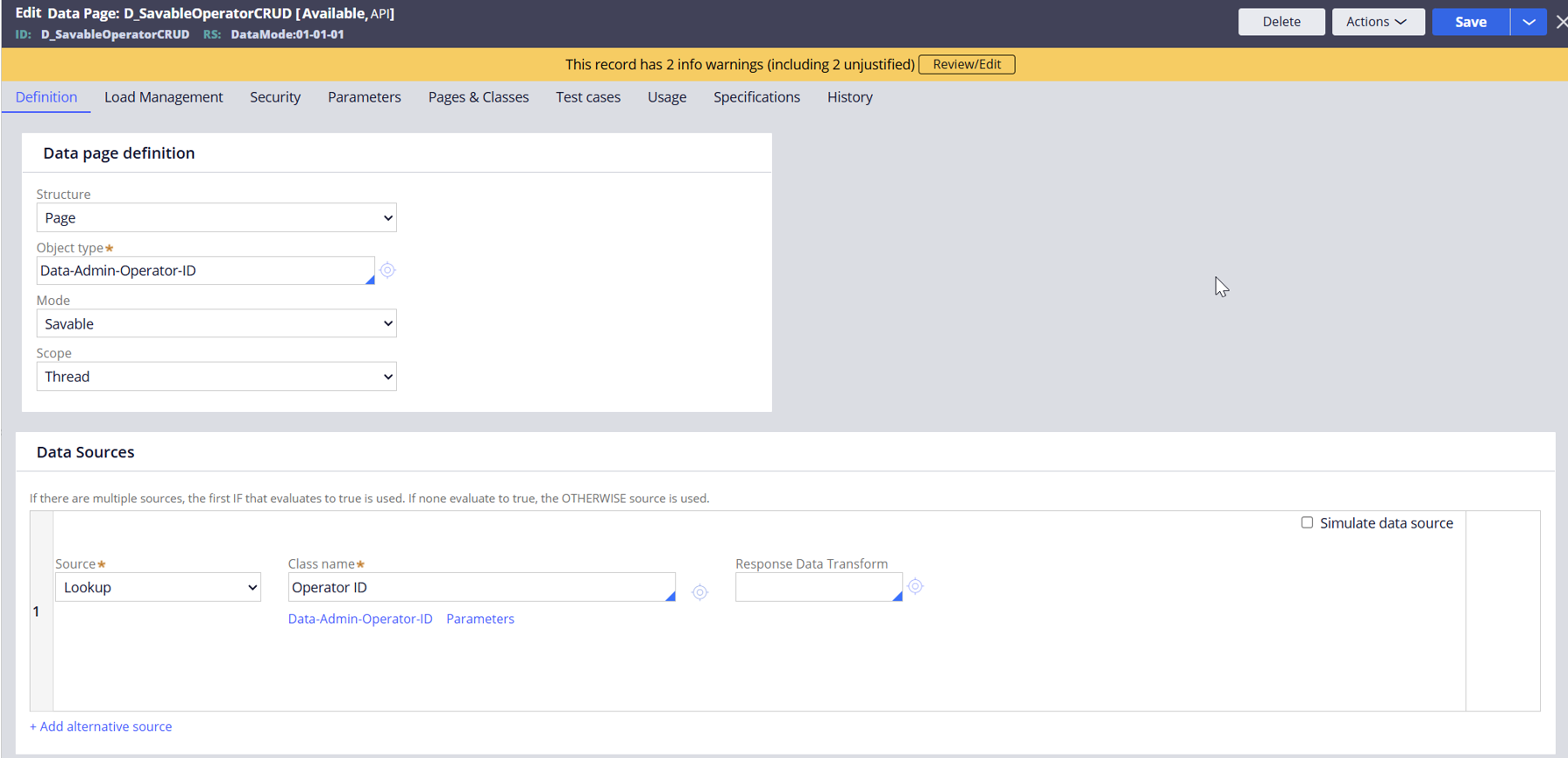
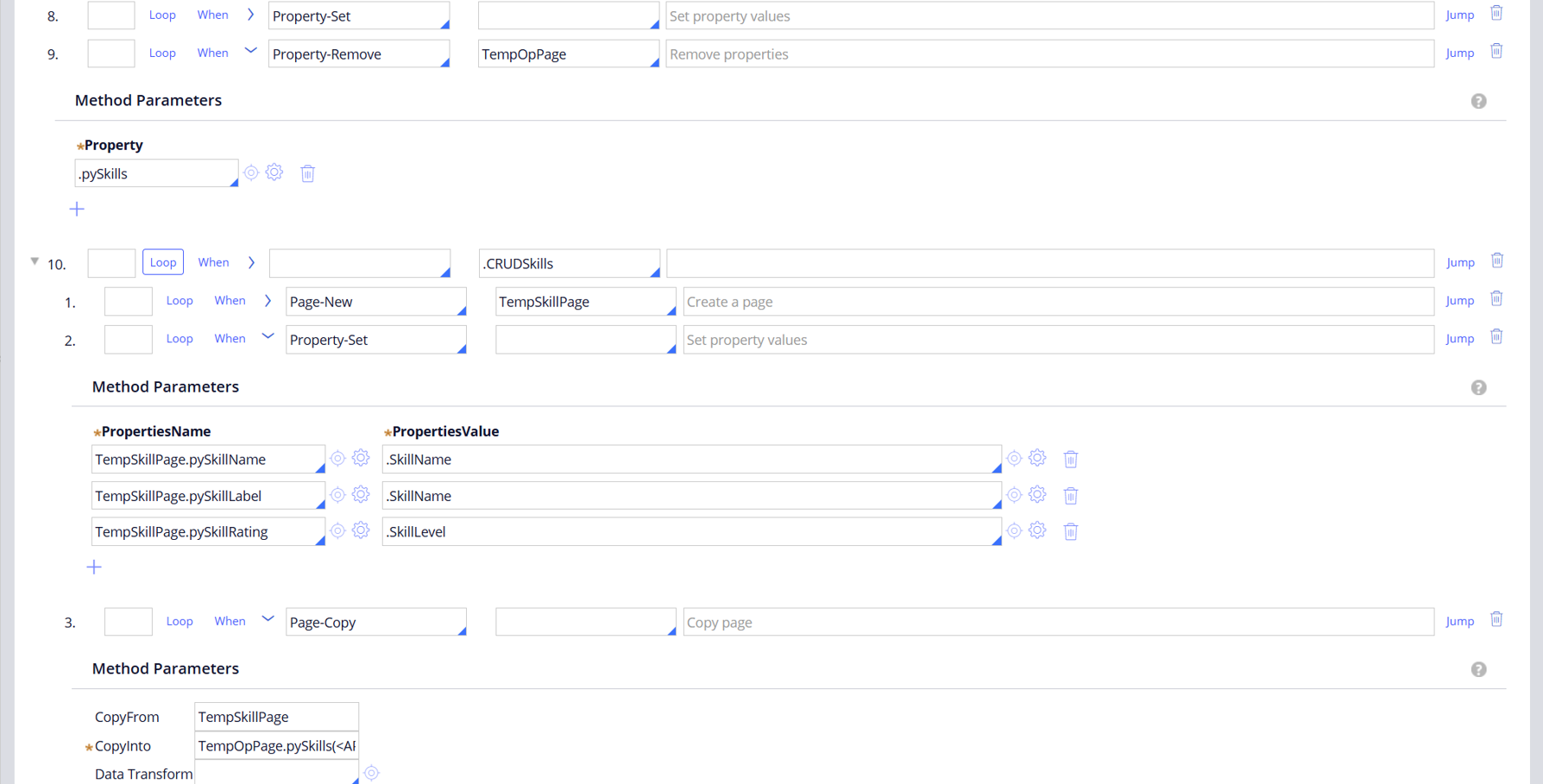
We will stop a bit longer on the Savable DataPage as it needs some additional work. Instead of the ootb Database operations in “Data save options”, we will leverage an existing pySaveOperatorDetails Activity:
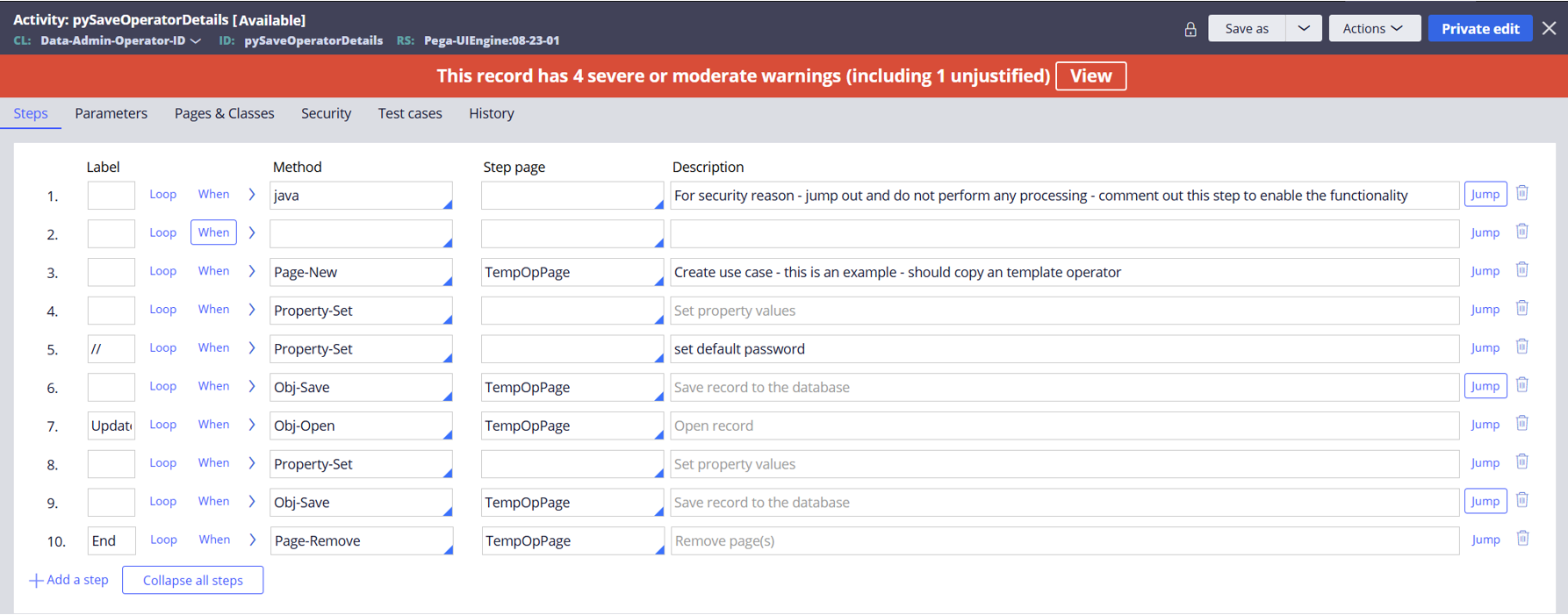
You need to save it in your ruleset and comment out the first step to enable it.
Then Activity has two sets of actions – for Creation of new Operator and for Updating of an existing one. In each of them we need to:
- Add the properties that are not included OotB, but which we want to modify (i.e. First Name, Last Name)
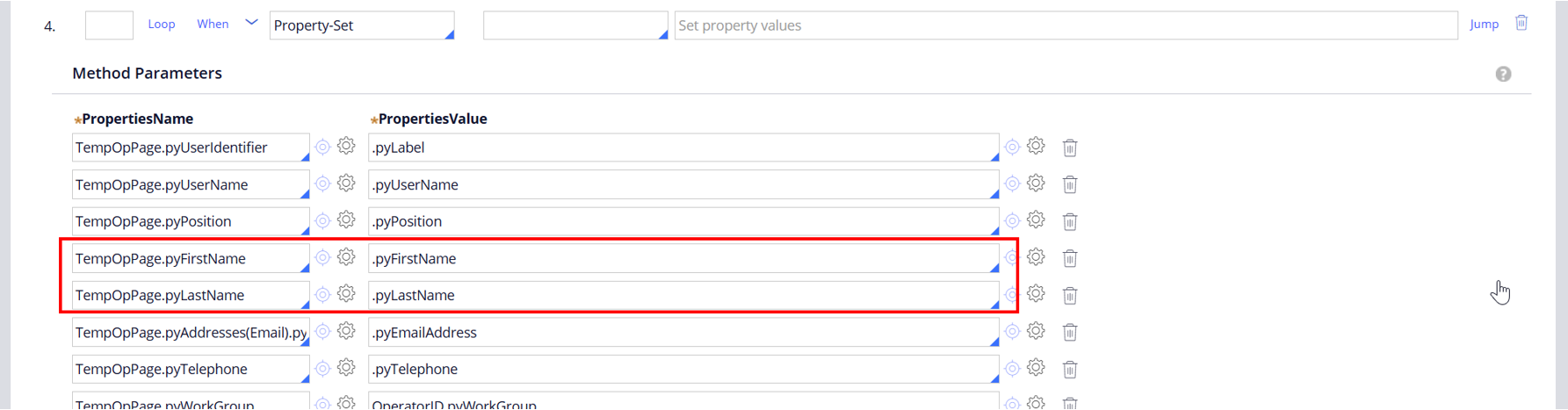
- Populate pySkills based on our CRUDSkills values
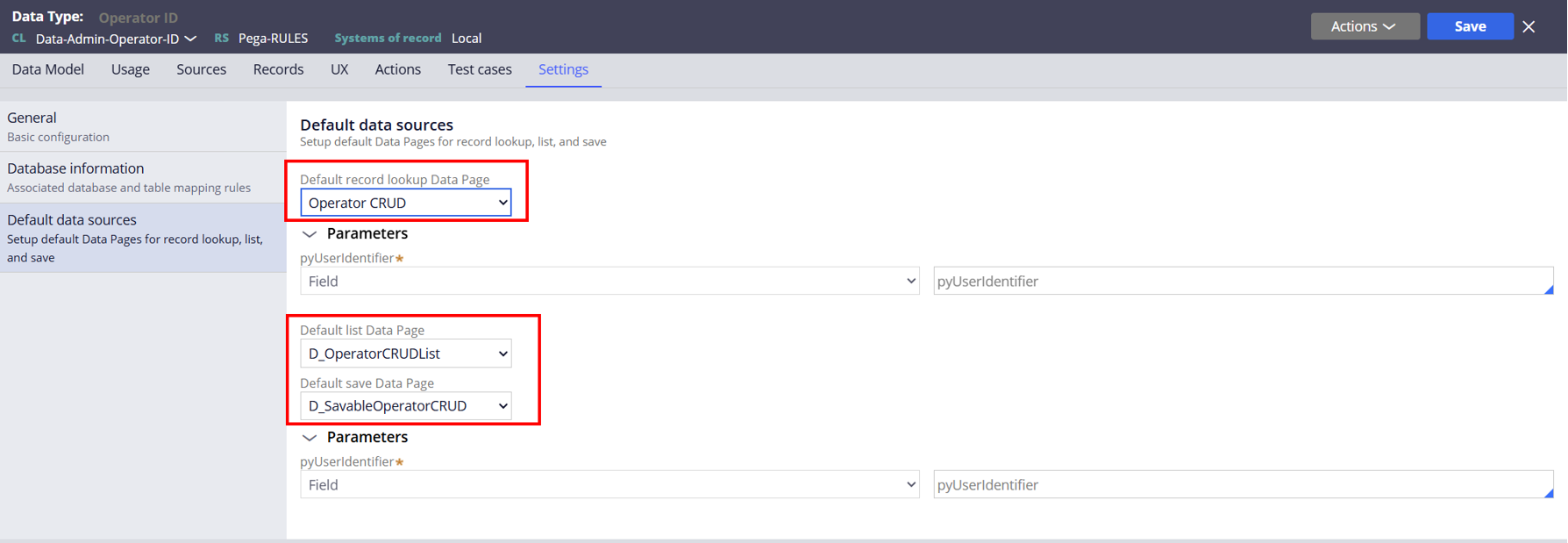
Last, we need to add the newly created DataPage as default data sources in Operator Data Type Settings:
5. Configure Create and Edit views
With the Data Model and background processing ready, we can move to the front-end configuration.
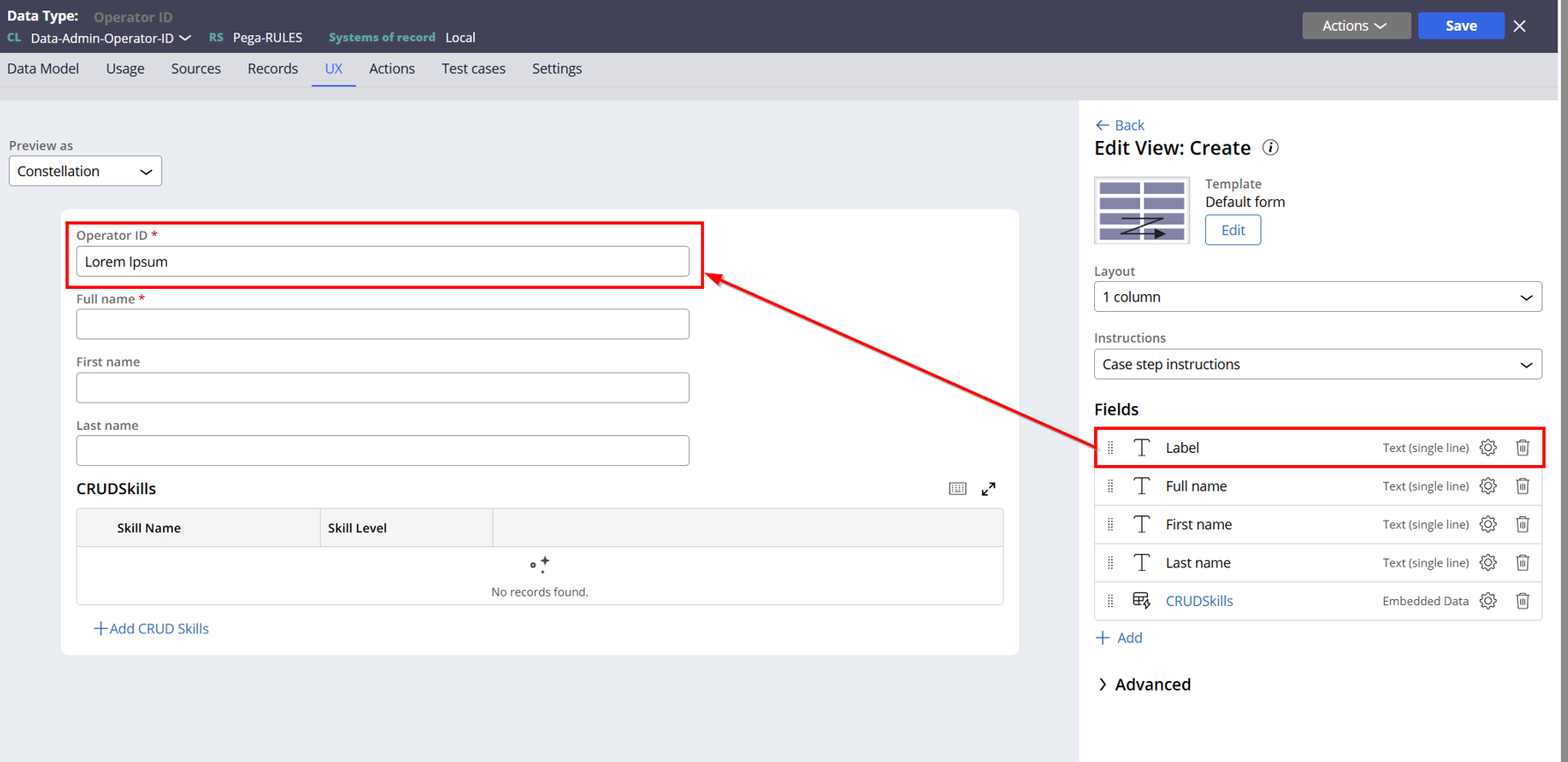
The Create and Edit views are available in our Operator Data Type already. Now we need to configure it, so that First Name, Last Name, OperatorID and CRUD Skills are also included.
Notice, that the Operator ID is in fact a Label property – as mentioned earlier, the pyUserIdentifier is not a String, but User Reference type property. The pySaveOperatorDetails we’ve worked with earlier handles setting of this value.
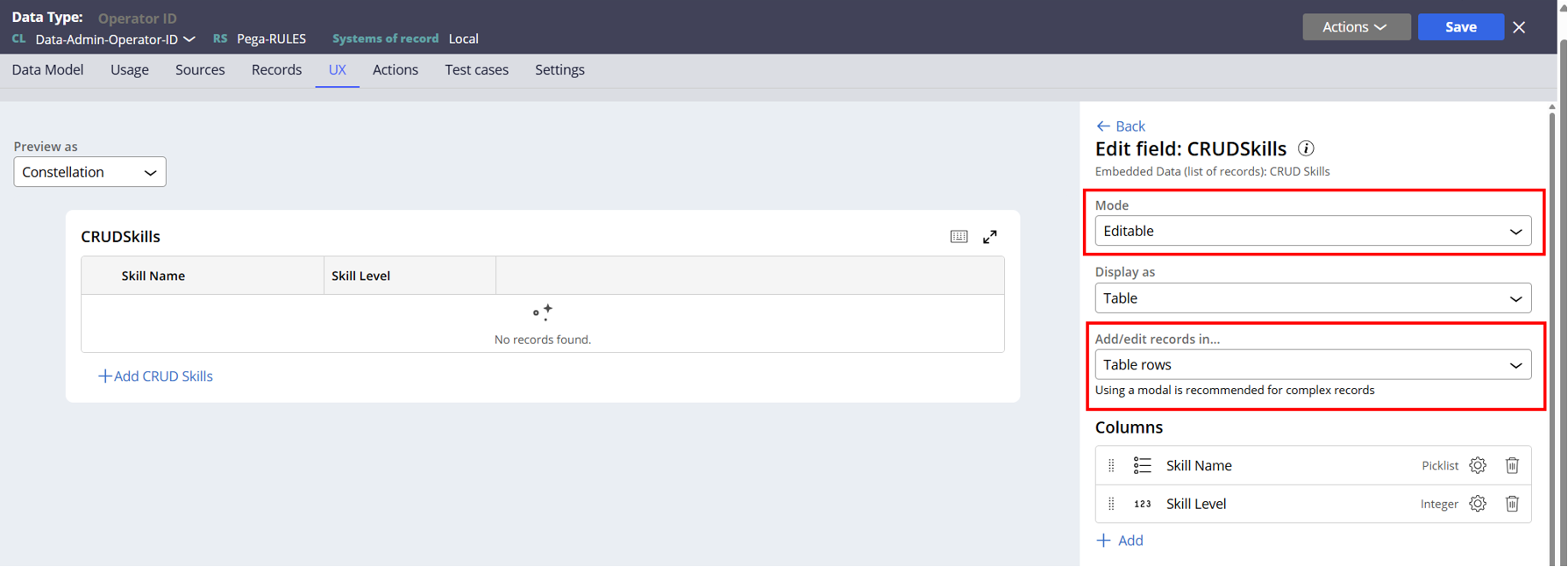
In the CRUDSkills table, we can set up the Create/Edit actions – keeping in mind, that we have to set the edit mode in table, not in modal (our Operator creation will be also displayed in modal, and nested modals are not supported).
6. Configure List View
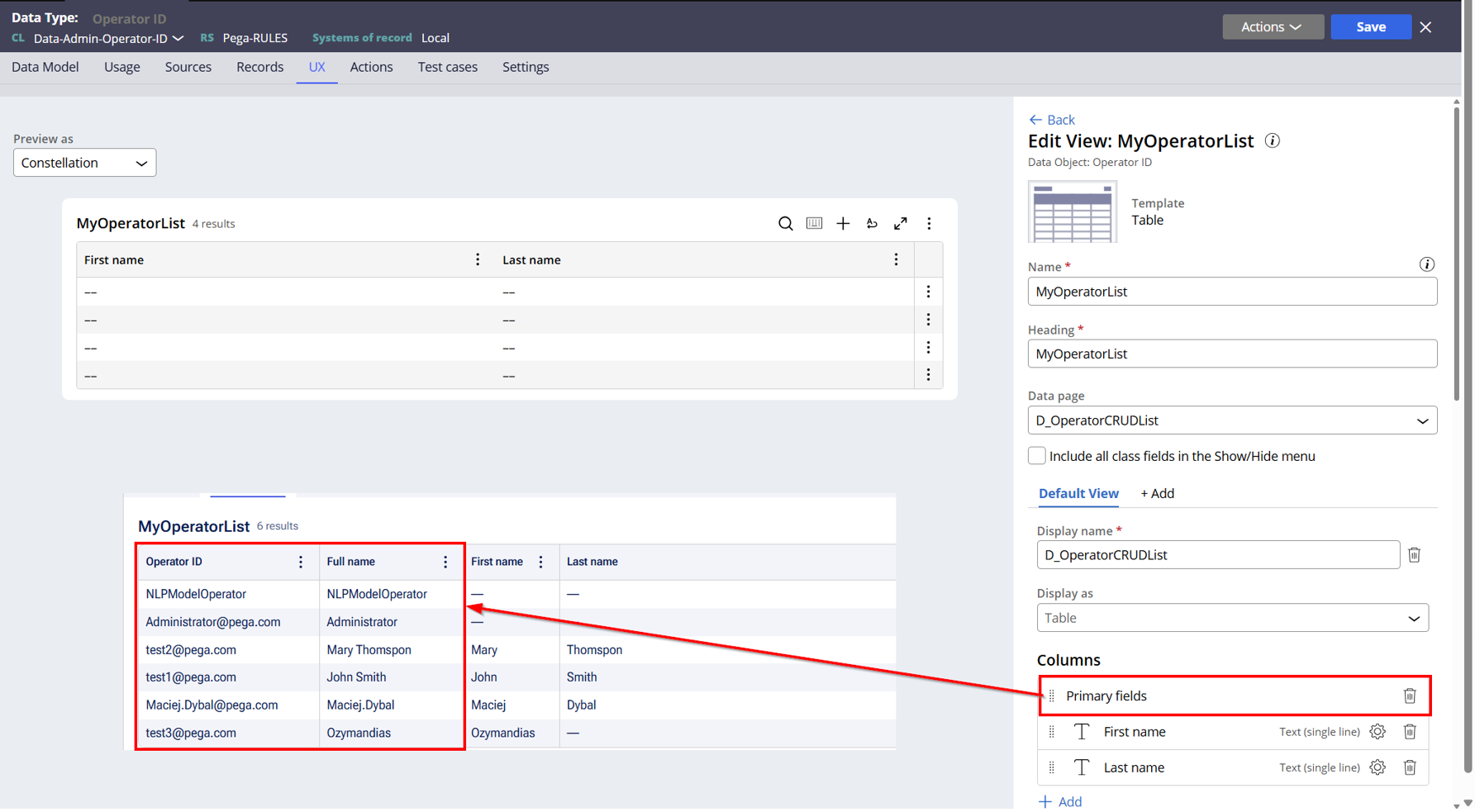
On the Operator Data Type we create a new List View “MyOperatorList” sourced from our D_OperatorCRUDList DataPage. Unfortunately, we cannot use the Operator ID property directly as a column in our authoring – it is not a scalar value. Fortunately, if we setup it as a Primary field, the UI will able to handle it and display both column and values correctly.
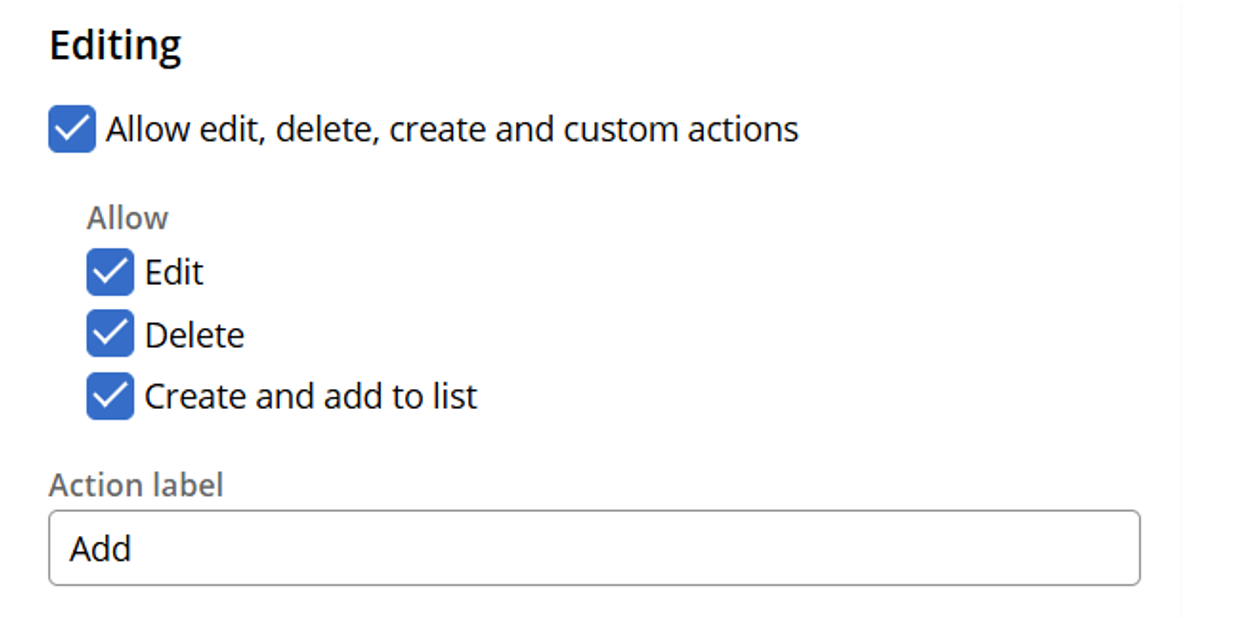
As the last step, we enable Create, Edit and Delete actions:
7. Create Landing Page
From the Channels tab in AppStudio, we open the Work Portal configuration and create a new Landing Page:
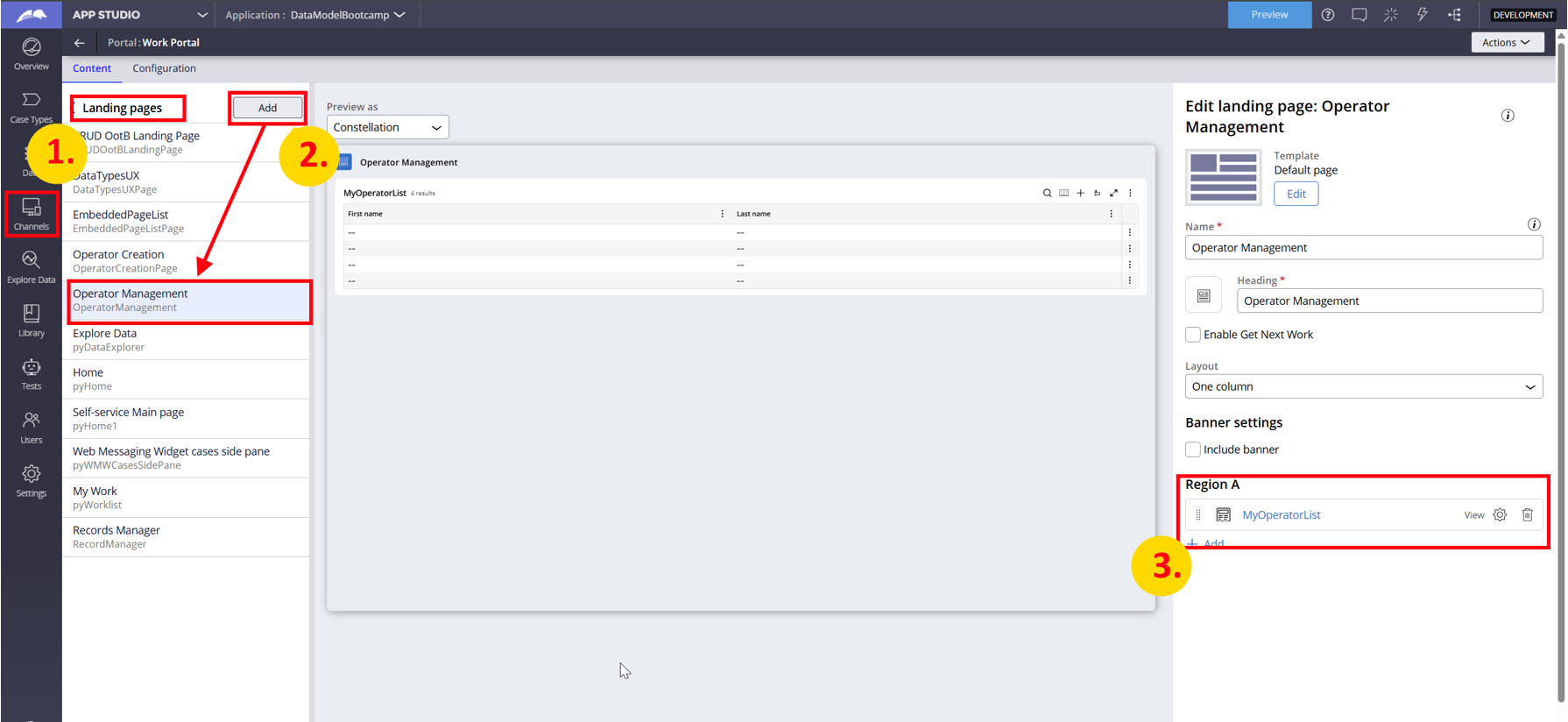
As a last step, we add the MyOperatorsList view to the landing page.
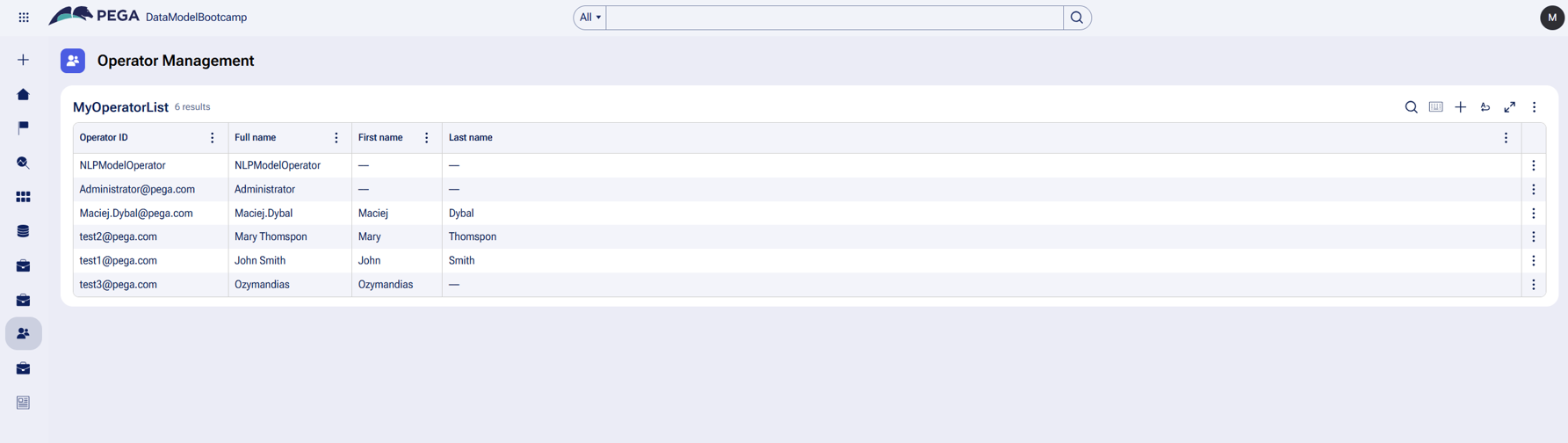
Let’s see how the functionality looks like in runtime:
Constellation 101 Series
Enjoyed this article? See more similar articles in Constellation 101 series.
Pegasystems Inc.
PL
@VenkateswararaoK @VenkateswararaoK please take a look at pySaveOperatorDetails Activity. OotB this is just a template Activity with some example steps. Validation, Access Group handling, Wourqueues should be build around it as per app's requirement.

Vodafone
IN
@MACIEJ Dybal and All, we tried multiple ways to check duplicate record while creating record from landing page with create option
1. tried with validate rule unable to achieve as Validate allow only one input property
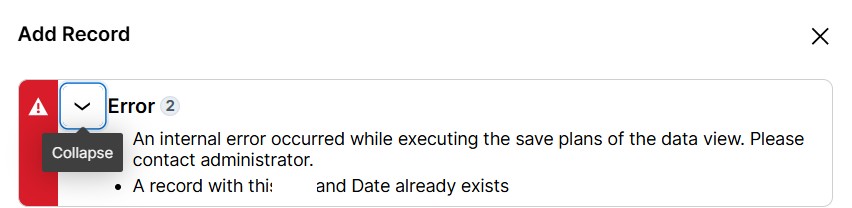
2. tried with different ways to check the existing record and set error message, but along with error message receiving other error message (An internal error occurred while executing the save plans of the data view. Please contact administrator.)
Any idea how to remove other error message which is getting from backend create API ?

Pegasystems Inc.
PL
@VenkateswararaoKthe first message is auto added by DX API. There is an open ticket for it.
BR
Hi @MACIEJ Dybal, I am grateful about this article that you wrote, this is part of what I exactly need. I need some extension on this solution as it is not only the skills that I need to edit or overwrite I need to beable to edit the teams, access groups, organizational units, work baskets, report to, operator available to receive work, get from work queue first, Use all work queue assignments in user's team, Merge work queues and Disable Operator. For those I need to follow the same instgructions as you mention for skills or I need to create the CRUDSkills for all of this? I mean of course I will need to change thename from CRUDSkills to something else like CRUDOperator is soethinglike that? Another point is on your article, few screenshots that you added at the begining of your article does not show for me, maybe it is something wrong with my pc, but other screenshots further down your article I am able to see. This is a example on what I am not able to follow the instructions because there is no screenshot to guide me:

Hi @MACIEJ Dybal, I am grateful about this article that you wrote, this is part of what I exactly need. I need some extension on this solution as it is not only the skills that I need to edit or overwrite I need to beable to edit the teams, access groups, organizational units, work baskets, report to, operator available to receive work, get from work queue first, Use all work queue assignments in user's team, Merge work queues and Disable Operator. For those I need to follow the same instgructions as you mention for skills or I need to create the CRUDSkills for all of this? I mean of course I will need to change thename from CRUDSkills to something else like CRUDOperator is soethinglike that? Another point is on your article, few screenshots that you added at the begining of your article does not show for me, maybe it is something wrong with my pc, but other screenshots further down your article I am able to see. This is a example on what I am not able to follow the instructions because there is no screenshot to guide me:
Do youmind to help me out on that? Yes and I know, there is a lot of information that the client wants to be able to edit or even add new Operator in a landing page way, but they want it that way, so as it is my first time on Constellation I need to learn in order to make it for them. Appreciate your help.
Best regards,
Mario Mesquita
Pegasystems Inc.
PL
@MarioM17642831 Hi - thanks for btinginh this one up, something broke with the pictures. I've re-uploaded them and show up fine now.
As for the other related objects - I would have to dig into the datamodel, but my guess is: "yes, you need supporting Data Types"
BR
Hi @MACIEJ Dybal how are you?
Just have a question about this part:
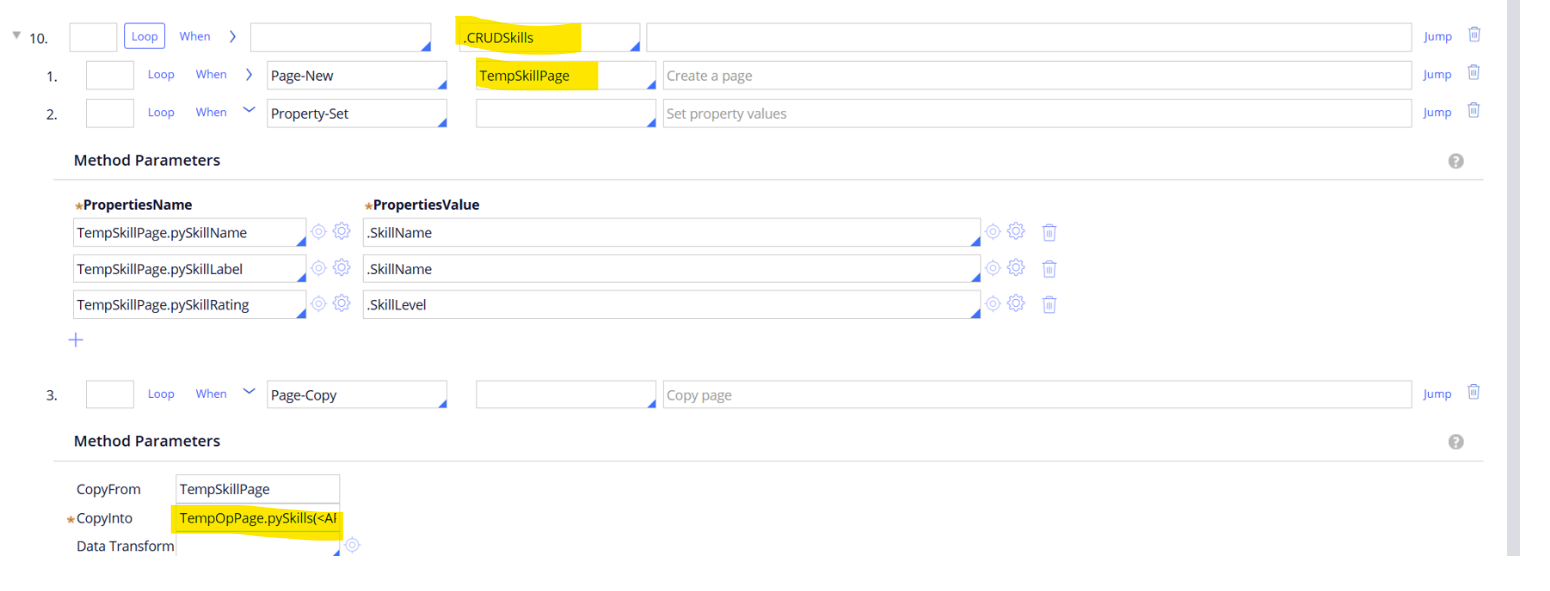
From ehere this .CRUDSkills is coming from?
What is the class of this TempSkillPage?
At this Page-Copy step, what is the remaining configuration? Because the text is not completed.
I got lost without those details that it is not implicit for me.
Thanks in advance for clarifications.
Best regards,
Mario Mesquita
Pegasystems Inc.
PL
CRUDSkills is the PageList property I've created on OperatorID class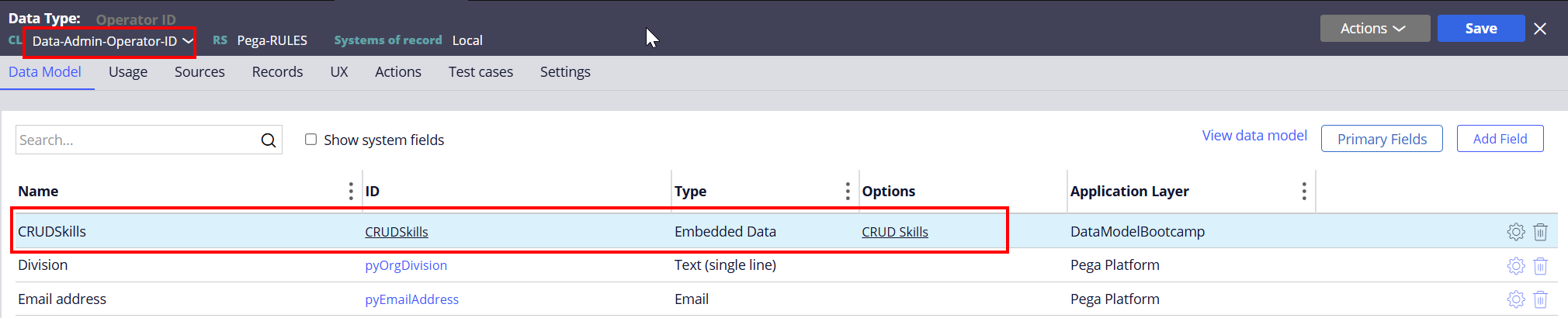
TempSkillPage is of Embed-Data-Admin-Skill - it's just a helper page to copy the data between CRUDSkills and proper skills on Operator.
The whole idea behind those steps it to configure UI to fill in Skills by user (on CRUD Skills field) and then in post-processing copy the data back to the Operator record ootb properties (pySkills)
BR
@MACIEJ Dybal Hi it is me again,
I follow your article as is, with information it was provided, but I am getting everytime when I try to create a new operator this message bellow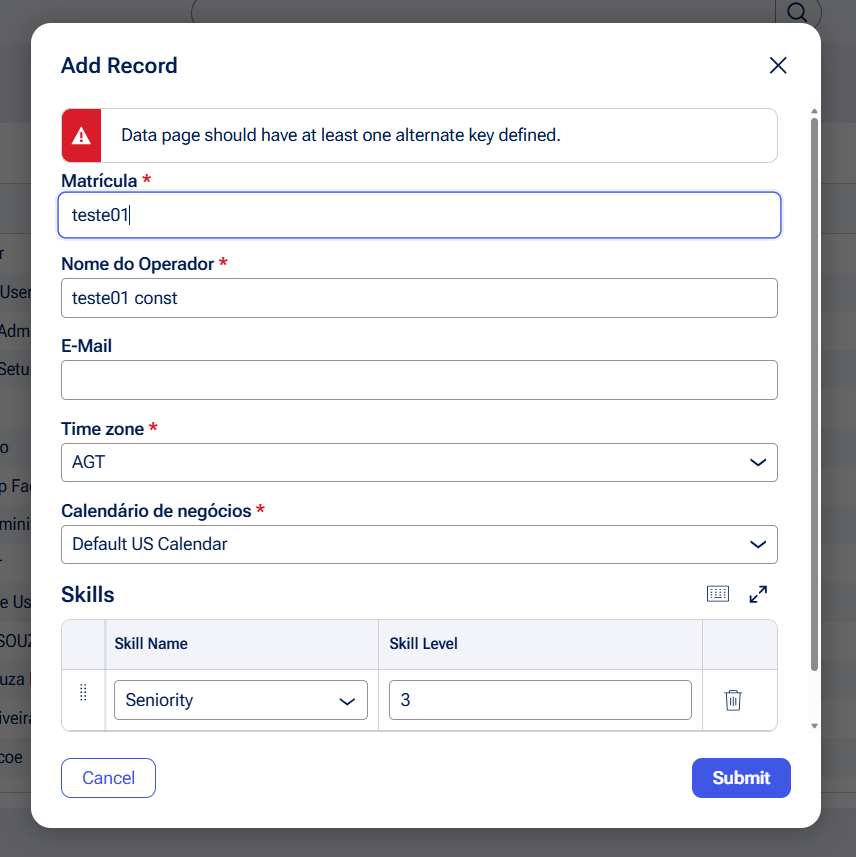
As is constellation and I am still learning how to deal with this yet, as we do not have clipboard anymore, tracer I dont know how to make it work anymore, logs does not show anything, so debugging turns very hard. Can somebody help me understand why I am getting this error message? What datapage it is talking about? There are no clues, no places to check what is wrong, I mean, constellation so far for me make few steps back, I am not saying it could not be good, but as is now, it is making life harder. Please help me out.
BR
sorry I forgot to mention, Matricula is the pyUserIdentifier and nome do operador is the pyUserName
BR
Hi all, I make it to work. There is no place that explains such a thing so we have to burn our brains to find out until it works. So to make this works as is, we need to set the parameters tab like this: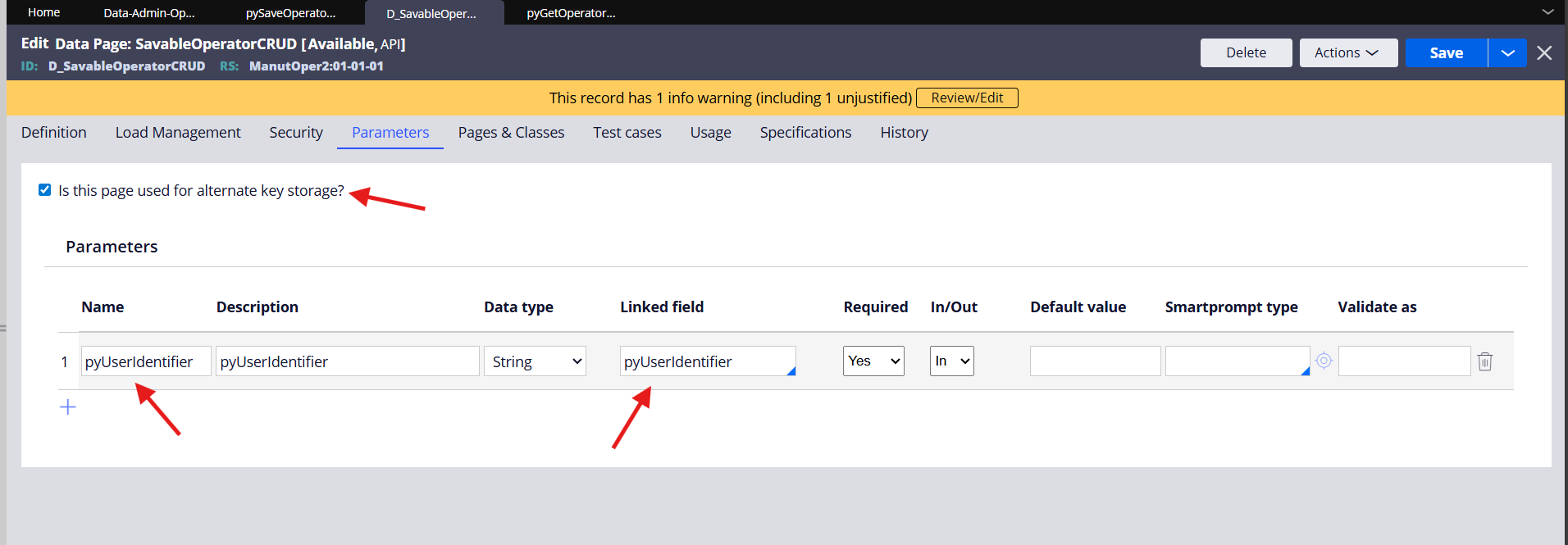
Of course the parameters name can be any of your choice, but the check box and the linked field must need to be as that.
Thanks, you are welcome.