
Conversation

Pegasystems Inc.
IN
Last activity: 9 Jan 2026 2:16 EST
Working with Constellation DX components in library mode
Context
- Audience – Pega developers who want to use Constellation DX components to build their own interfaces to extend the Constellation user experience.
- Version – DXCB 25.1.10 and Pega Platform ‘25
Why
In library mode, you can publish a library of components and maintain multiple libraries and library versions. The components within a library share common code. This provides you with a much more flexible and efficient approach for working with components.
Overview
Starting from DXCB 25.1.10 and Pega Platform ’25, library mode is the default way of working with components. All components created in DXCB 25.1.10 in library mode are called library mode components, while components created in DXCB 25.1.10 after disabling library mode or created before DXCB 25.1.10 are called standalone components.
Benefits
Library mode has been designed for Pega Platform ’25 and library mode components contain several advantages over standalone components.
Using library mode, Pega developers can
- create multiple versions of a library
- import and export libraries locally
- archive libraries
- locally manage multiple libraries and library versions
- import components to a library
Since components within a library share common code, they are smaller than standalone components and hence take up lesser storage space.
If you have updated to DXCB 25.1.10, you can start creating new components in library mode. If you have existing standalone components that you want to use in library mode, you can import them into a library and publish the library.
Note: Before you proceed, please update to DXCB 25.1.22 as it contains several important bug fixes.
Convert standalone components to library mode components
You can convert existing standalone components that were created before DXCB 25.1.10 to library mode components.
Place the standalone components in a separate folder. Check if these components have the same organization and the same library.
- If the standalone components have the same organization and the same library, see Procedure 1.
- If the standalone components have different organizations and different libraries, see Procedure 2.
Procedure 1 - Standalone components with same organization and same library
Watch the following video for a tutorial on converting standalone components with the same organization and same library to library mode components:
If the standalone components that you want to import to library mode have the same organization and the same library, perform the following steps:
- In library mode, initialize a new project with the same organization as that of the standalone components.
For more information, see Initializing a project.
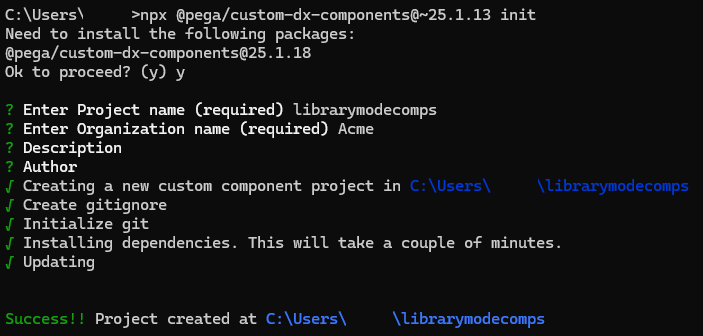
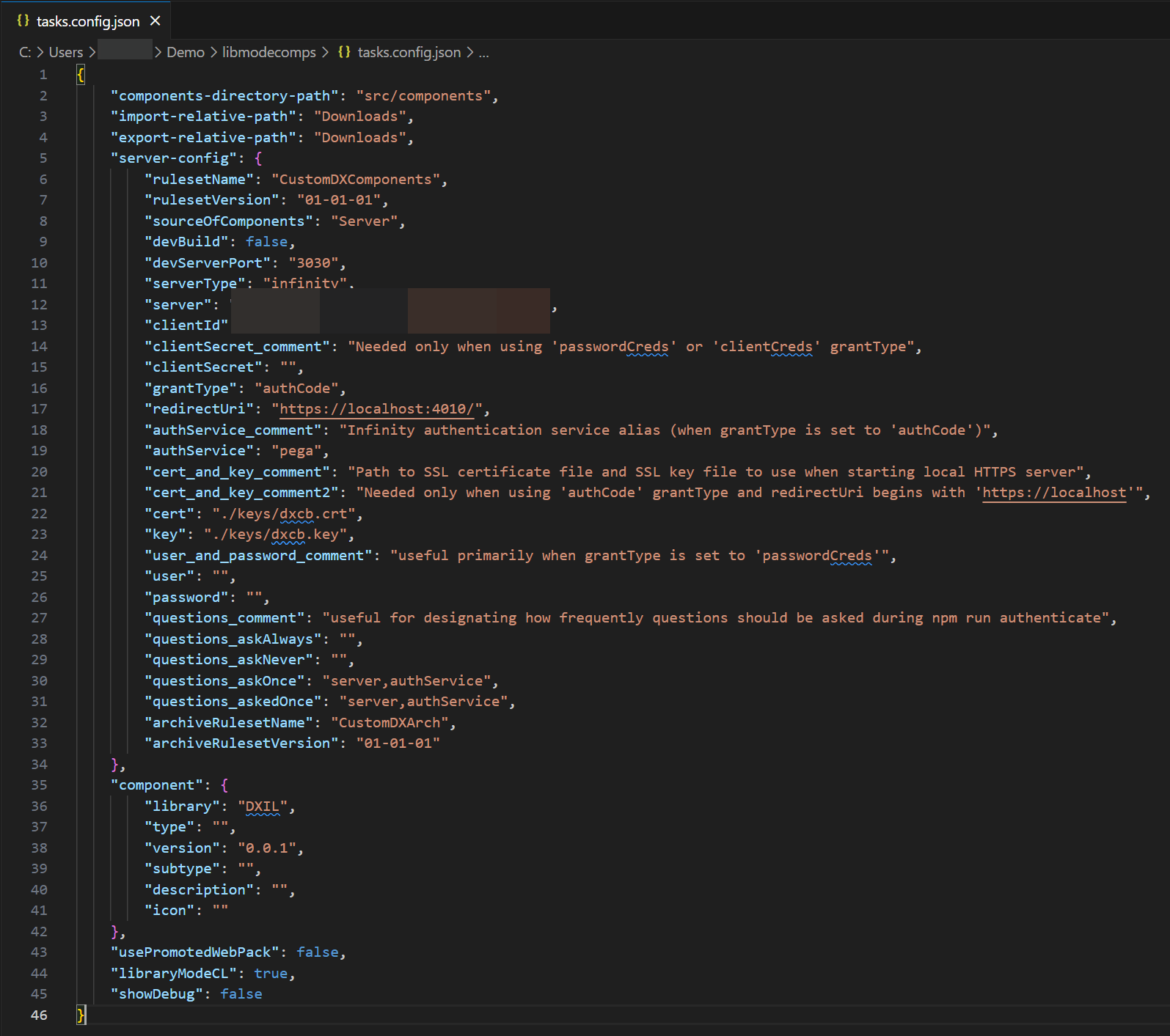
- After initializing the project, navigate to the newly created project, open the tasks.config.json file, and update the following attributes:
server - enter the complete path to the Infinity REST server where your application is installed and running.
clientId - enter the OAuth 2.0 client ID used to authenticate access to the Pega Platform server.
library - enter the same library used by the standalone components.
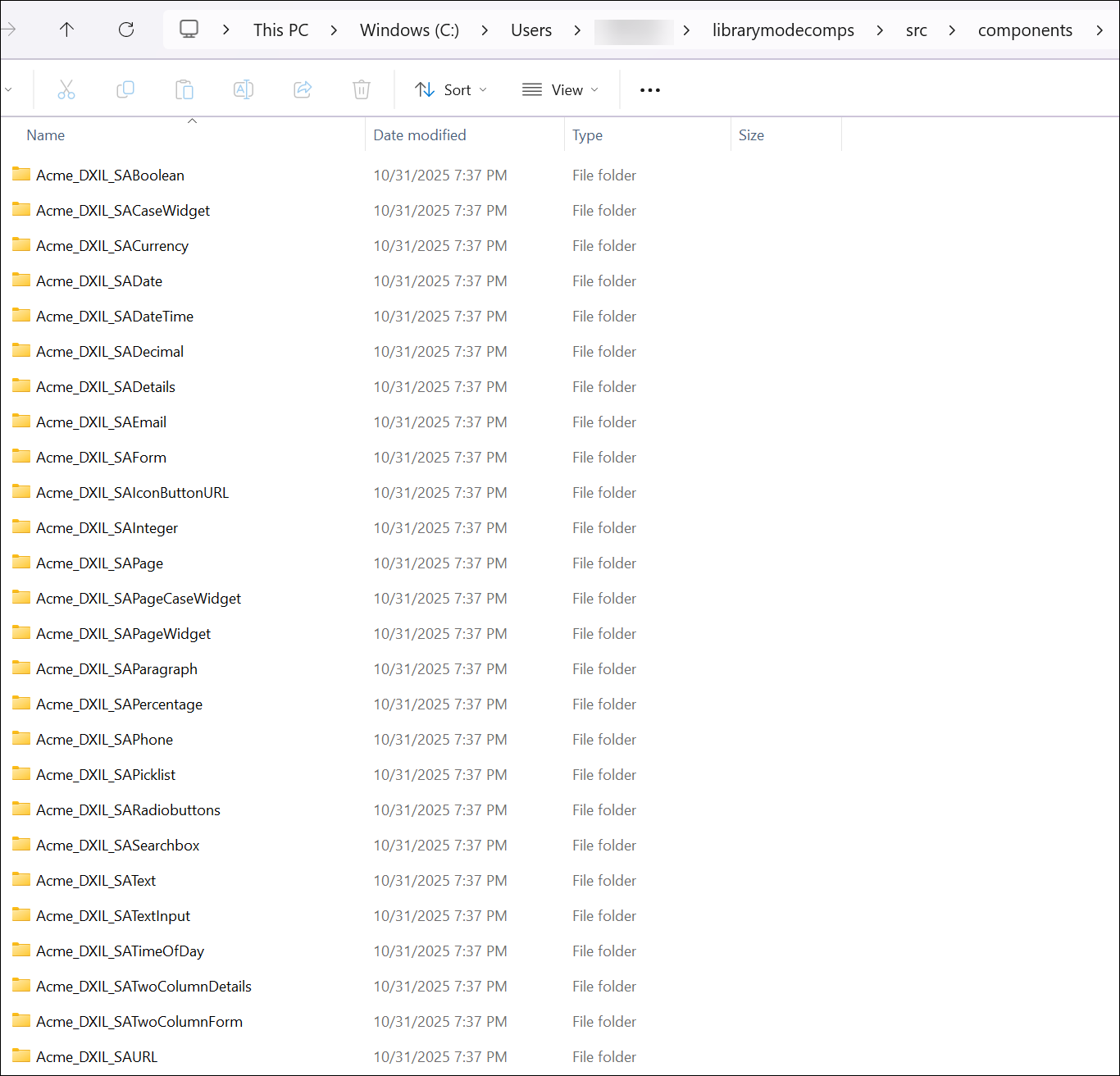
- Copy the folders of the standalone components into the new project's src/components folder.
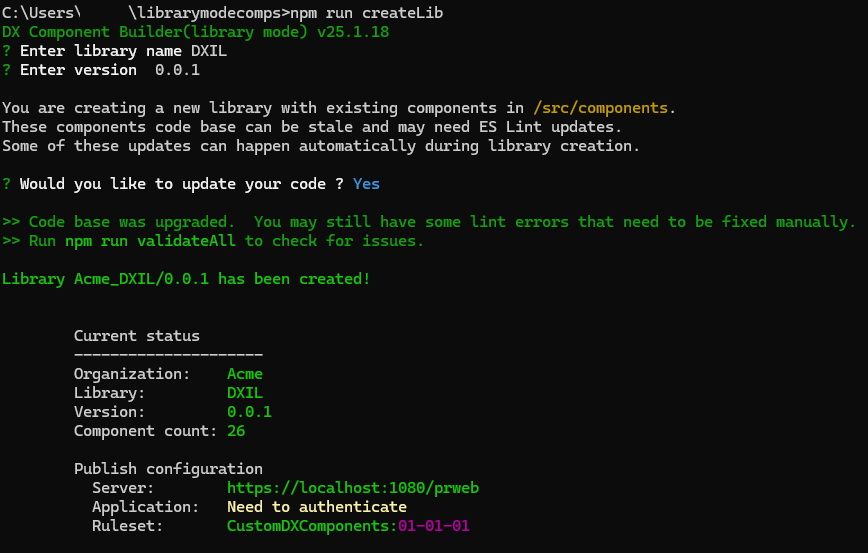
- In the terminal, navigate to the newly created project and run the createLib command to create a library with the same library name as that of the standalone components. You will be asked if you want to update your code. This is for ESLint changes. Enter Y to update your code base for ESLint changes (you will remain responsible for any manual updates) or enter N to retain your code base.
For more information, see Creating a component library.
- Check for issues in the components by running the validateAll command. You will come across lint errors and warnings that you will have to fix manually.
For more information, see Validating library mode components.
- After fixing the lint errors and warnings, run the authenticate command to authenticate your access to the Pega Platform server, if required. Ensure that you provide the correct server details to authenticate successfully. For more information, see Authenticating Pega Platform Server user access for library mode components.

- Run the publish command to publish the component library.
For more information, see Publishing a component library.
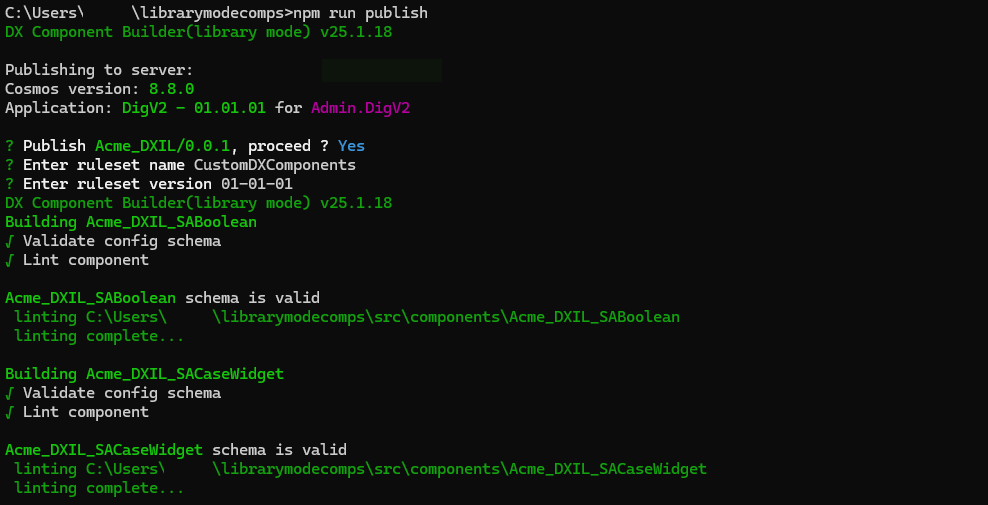

Your standalone components have now been converted to library mode components and are ready to be used.
Procedure 2 - Standalone components with different organizations and different libraries
Watch the following video for a tutorial on converting standalone components with different organizations and different libraries to library mode components:
If the standalone components that you want to import to library mode have different organizations and different libraries, perform the following steps:
- In library mode, initialize a new project with a new organization.
For more information, see Initializing a project.
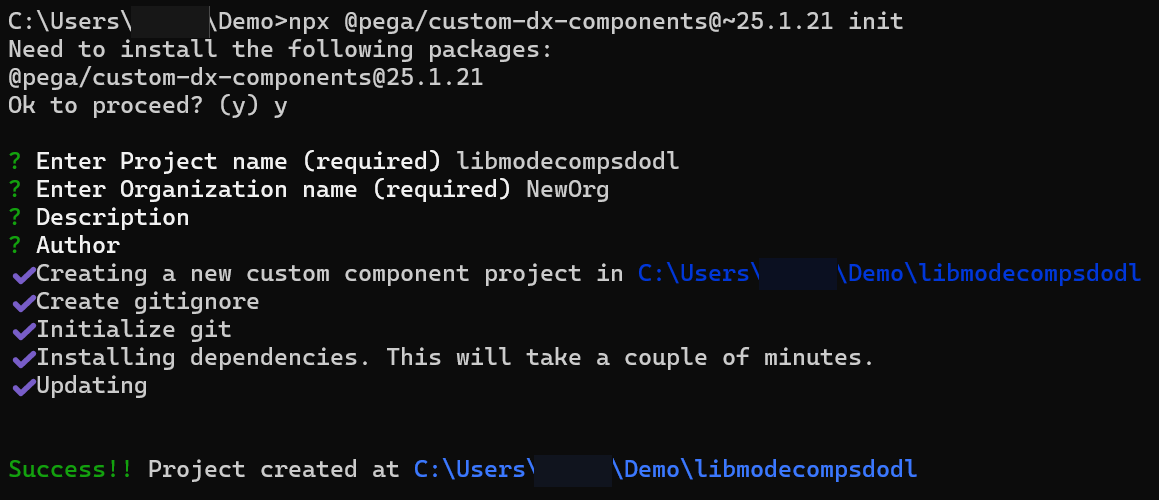
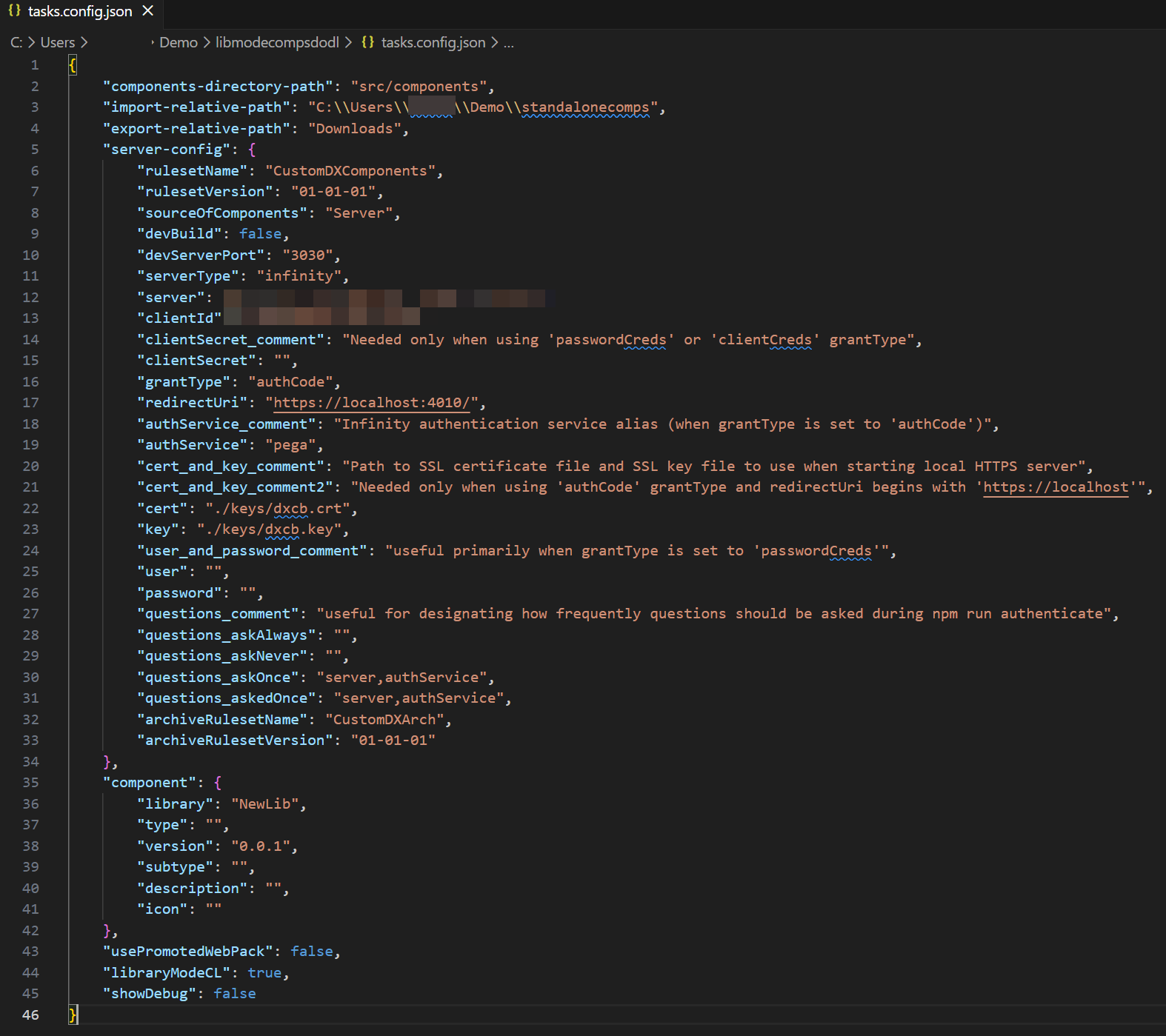
- After initializing the project, navigate to the newly created project, open the tasks.config.json file, and update the following attributes:
server - enter the complete path to the Infinity REST server where your application is installed and running.
clientId - enter the OAuth 2.0 client ID used to authenticate access to the Pega Platform server.
library - enter a new library name.
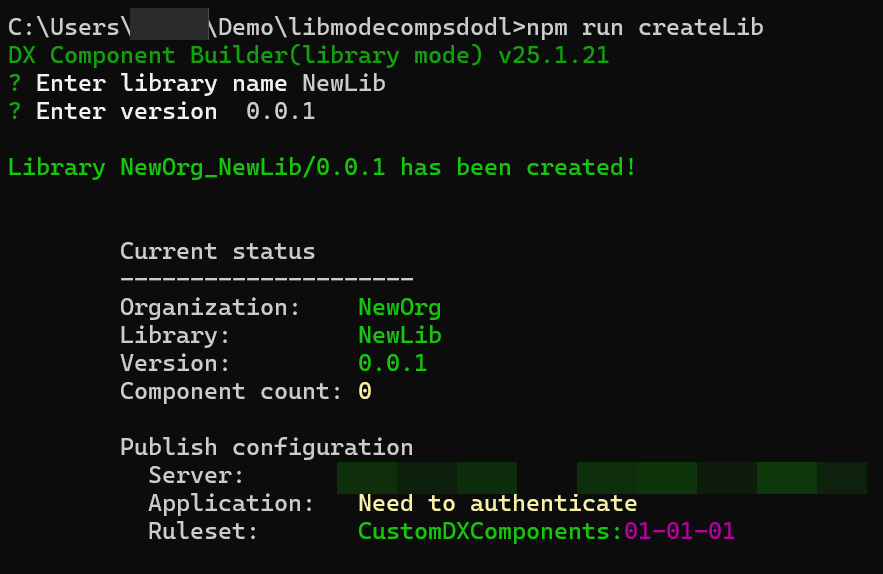
- Use the createLib command to create a new library.
For more information, see Creating a component library.
- Use the importComponent command to import each component into the newly created library. This ensures that all the components have the same organization and same library.
For more information, see Importing a Constellation DX component.
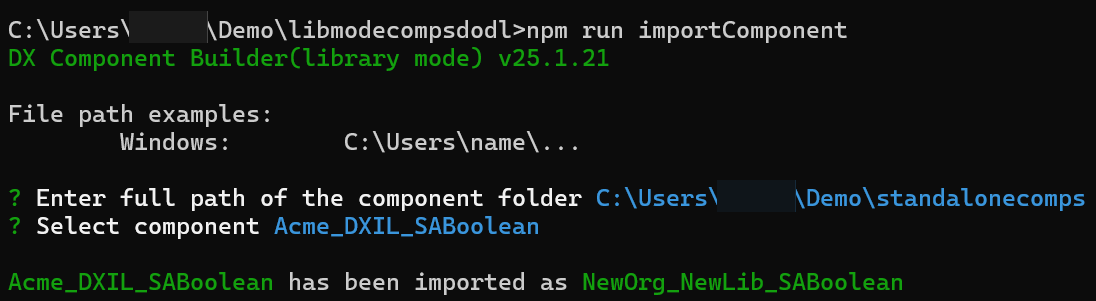
- Open the package.json file from the project folder of each imported component and copy the values of the dependencies. Open the package.json file of your new project and paste the copied dependencies here.
- Compare the duplicate dependencies and delete the older versions.
The package.json file in your new project now contains both your previous and latest dependencies.
- Ensure that all the included cosmos packages have the same version.
- Repeat steps 5 and 6 for devDependencies.
- Save the updated package.json file and enter npm update.
The package.json file is updated with the current code.
- Check for issues in the components by running the validateAll command. You will come across lint errors and warnings that you will have to fix manually. After you fix the issues, run the validateAll command again. For more information, see Validating library mode components.
- Use the authenticate command to authenticate your access to the Pega Platform server, if required.
For more information, see Authenticating Pega Platform Server user access for library mode components.

- Use the publish command to publish the component library.
For more information, see Publishing a component library.
Your standalone components have now been converted to library mode components and are ready to be used.
Additional resources
Constellation 101 Series
Enjoyed this article? See more similar articles in Constellation 101 series.