
Conversation

Pegasystems Inc.
PL
Last activity: 9 Feb 2026 9:52 EST
Using an Embedded Data List as a Picklist Source (with combo-box)
Objective
Learn how to configure a combo box that is populated from data entered earlier in the same case.
In this example, users define Team Members and then select one of them as a Manager from a combo box.
The article is based on Configuring a combo-box to select one option from a manually added list
This pattern allows users to:
- first manually create a list of records (embedded data), and
- then select one of those records from a combo box.
The available options in the combo box are not predefined and not fetched from a data source — they come exclusively from data entered by the user earlier in the case.
Prerequisites: A Case type (for example, Project Setup)
Step 1: Create the Embedded Data List
- Open the case data model.
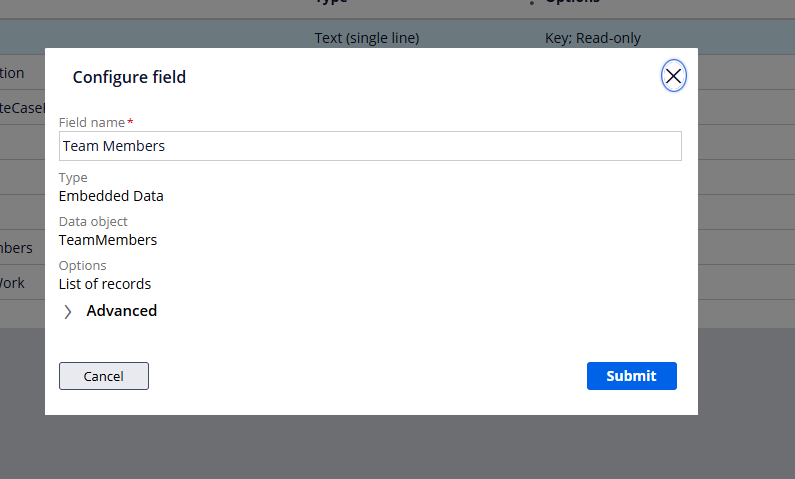
- Create a new field:
- Field name: TeamMembers
- Type: Embedded data
- Data object: TeamMembers
- Options: List of records
This field will store the list of available team members.
Step 2: Create a Single-Record Embedded Data Field
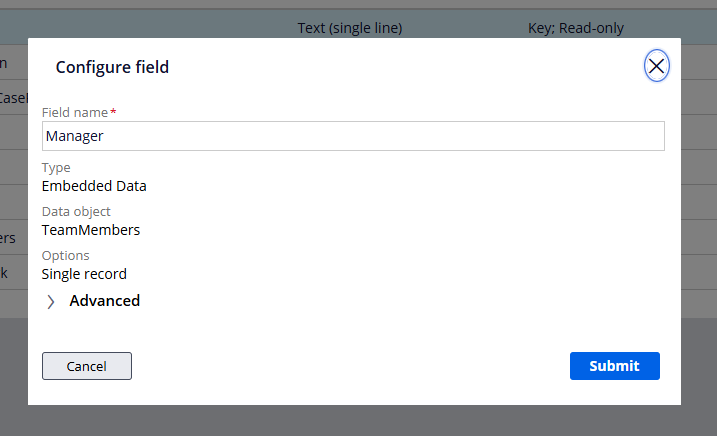
- In the same case data model, create another field:
- Field name: Manager
- Type: Embedded data
- Data object: TeamMembers
- Options: Single record
This field will store the selected team member.
Step 3: Define Fields in the Embedded Data Object
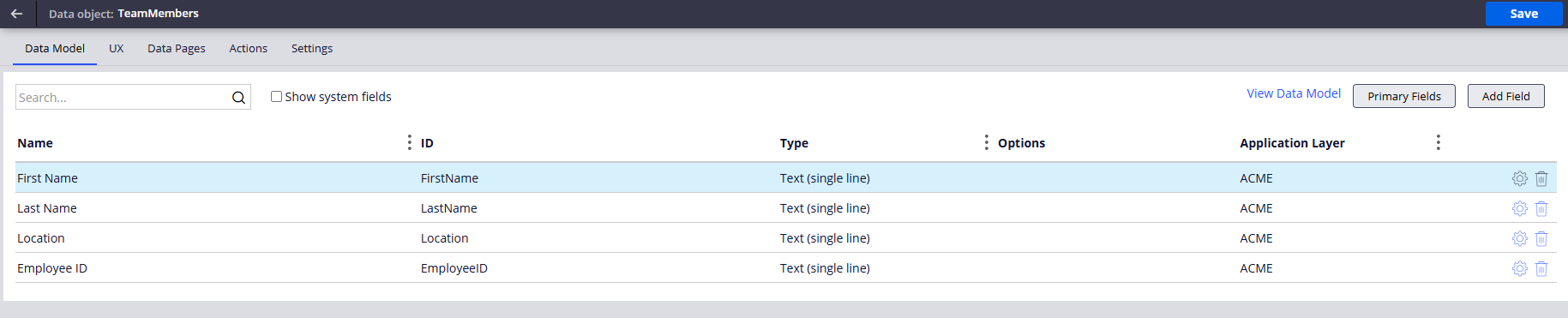
- Open the TeamMembers data object.
- Add the required fields, for example:
- EmployeeID (Text)
- FirstName (Text)
- LastName (Text)
- Location (Text)
These fields describe each record in the embedded list.
Step 4: Configure Views for the Embedded Data Object
Configure the Edit View
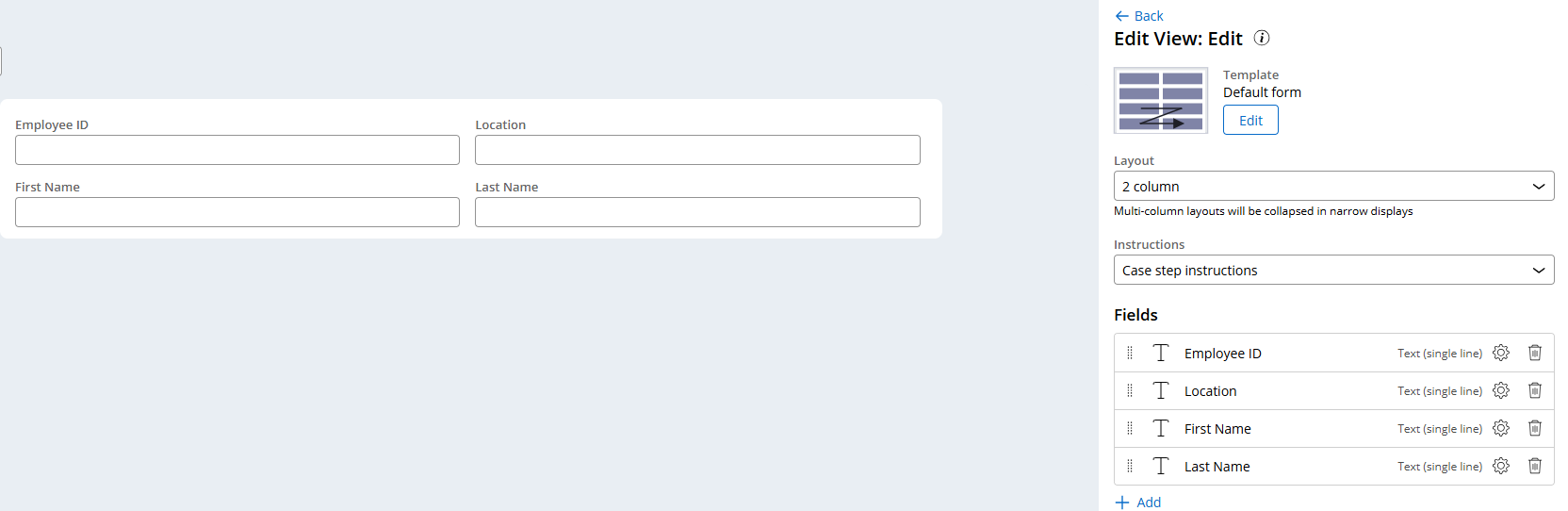
- Open the Edit view for the TeamMembers data object.
- Add all newly created fields.
This view will be used when users add or edit team members.
Configure the Details View
- Open the Details view for the TeamMembers data object.
- Add the same fields.
This view will be used for read-only display in the combo box.
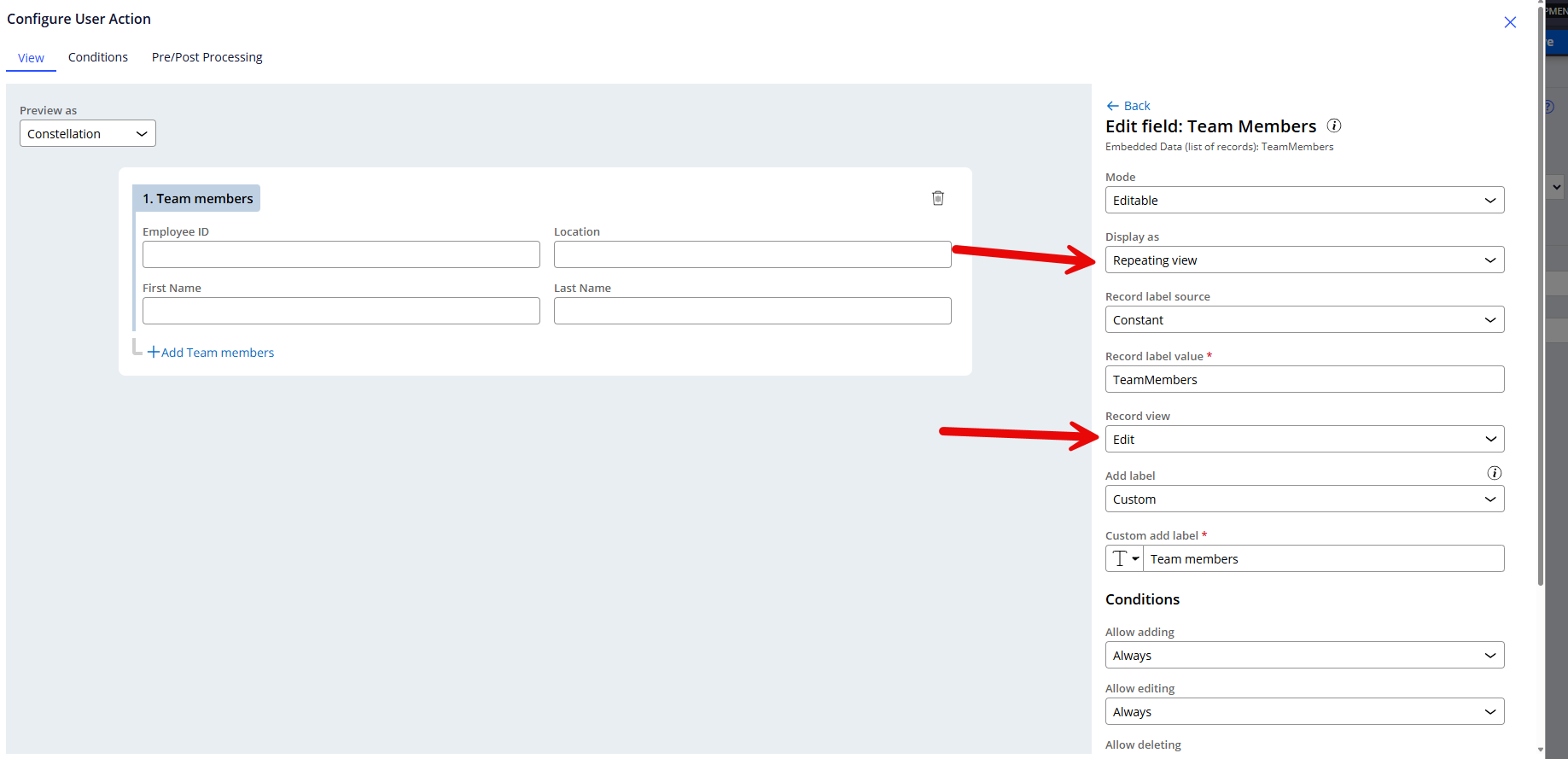
Step 5: Add Embedded Data Fields to the Case View
- Open the case step view where users define the team (for example, Setup Team).
- Add the TeamMembers field:
- Display as Table or Repeating view
- Use the Edit view of the embedded data (for repeating view)
This allows users to add multiple team members.
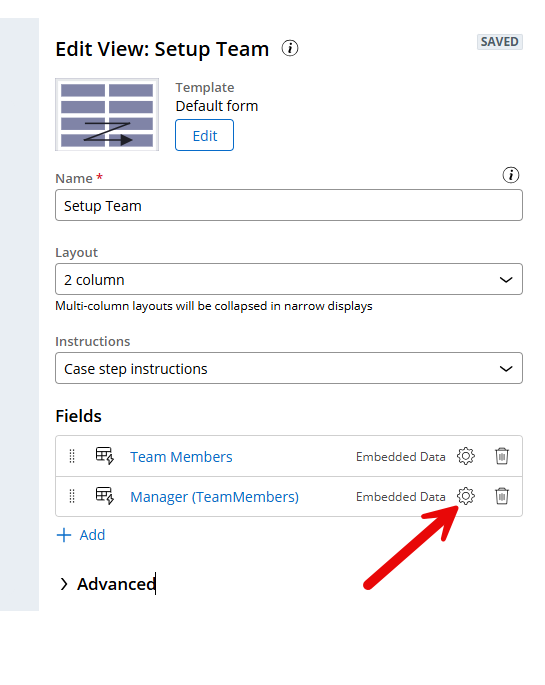
Configure the Combo Box
- Add the Manager field to the same view.
- Click the gear icon to configure the field.
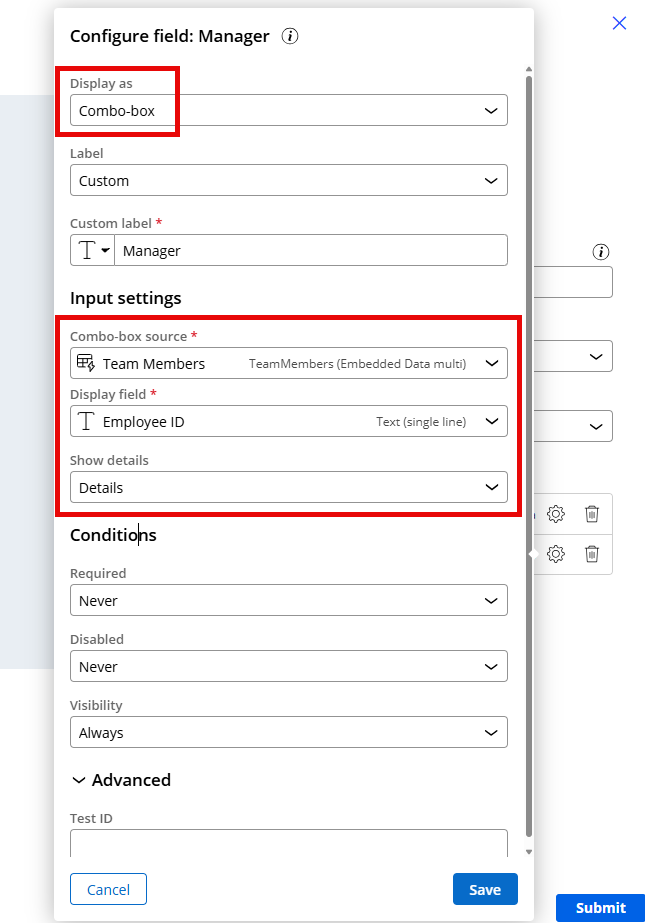
- Set the following options:
Display
- Display as: Combo box
Input settings
- Combo box source: TeamMembers (embedded data – list of records)
- Display field: EmployeeID (or another field)
- Show details: Use the Details view
This configuration populates the combo box with values from the embedded list.
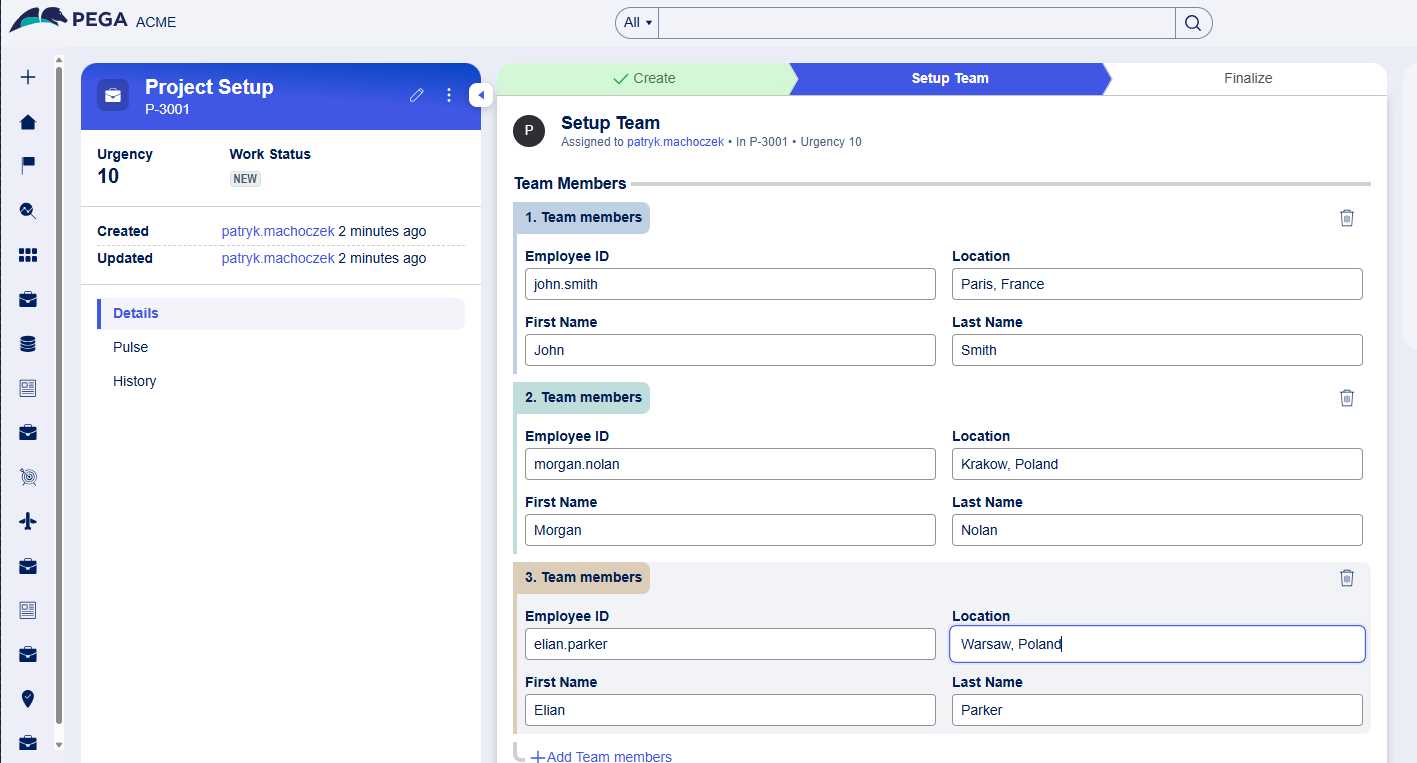
Step 6: Test the Configuration
In this step, you verify that the combo box shows the Team Members entered earlier in the same case.
- Create a new case.
- Navigate to the configured step.
- Add multiple Team Members.
4. Open the Manager combo box.
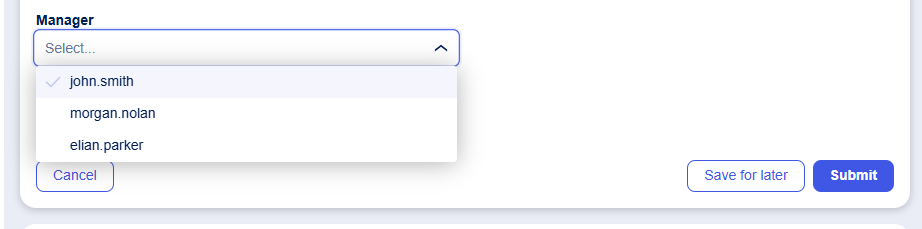
5. Select one of the previously added team members.
✅ The combo box is automatically populated from the embedded data list.
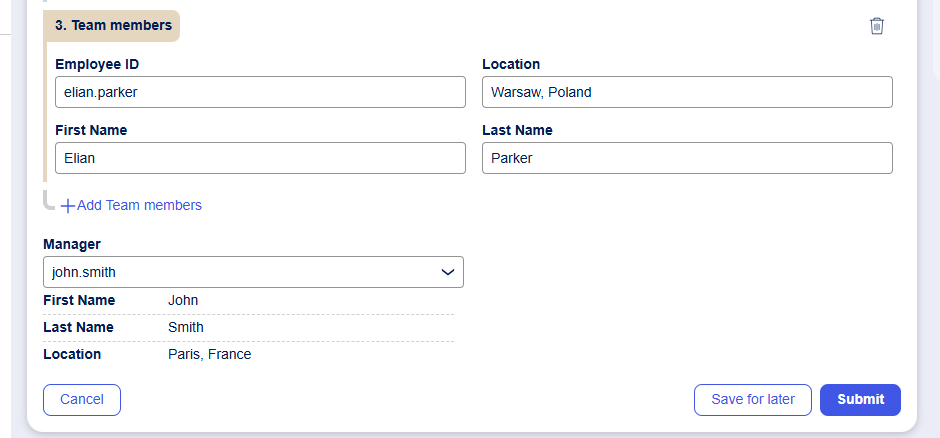
Note:
You may encounter an Invalid request data error during submit.
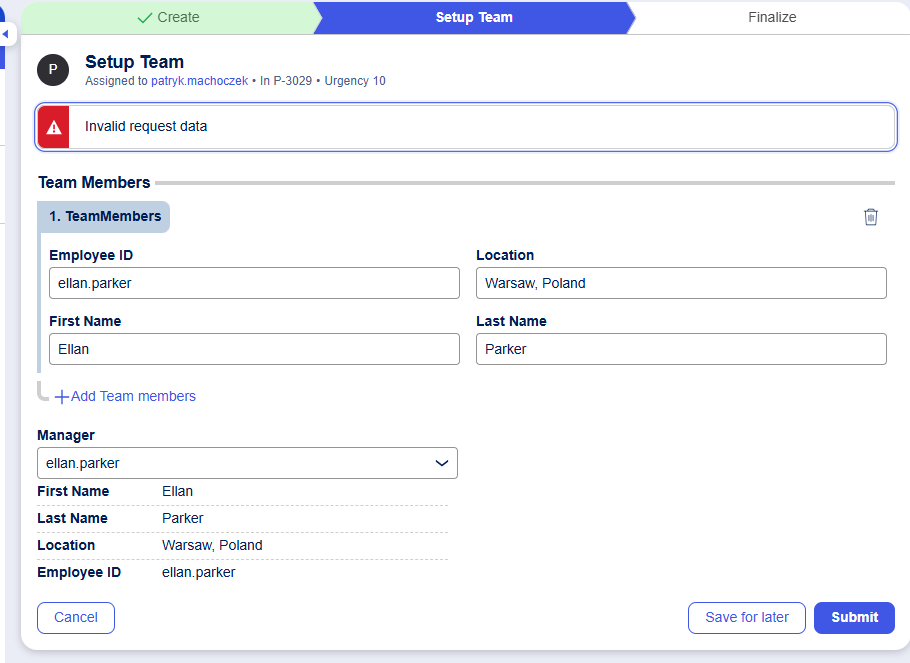
Pega logs show:
The field Manager.EmbedListUUID__ wasn't found in the view SetupTeamThis issue will be resolved in Infinity ’26. Until then, you can use the following workaround as a temporary solution.
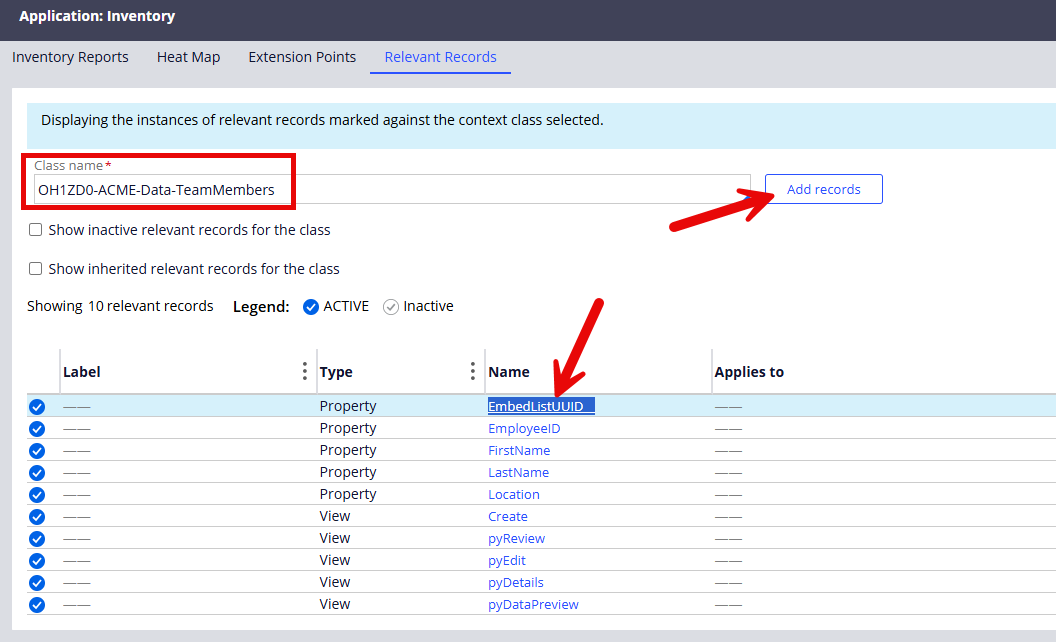
Add the Property as a Relevant Record
- Go to Application > Inventory > Relevant records.
- Select the TeamMembers data class.
- Add the property:
- EmbedListUUID__
Add the Property to the Case View
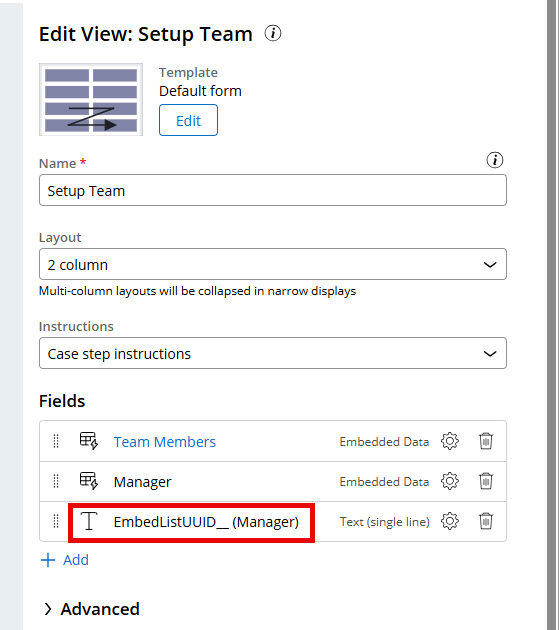
- Open the Setup Team view.
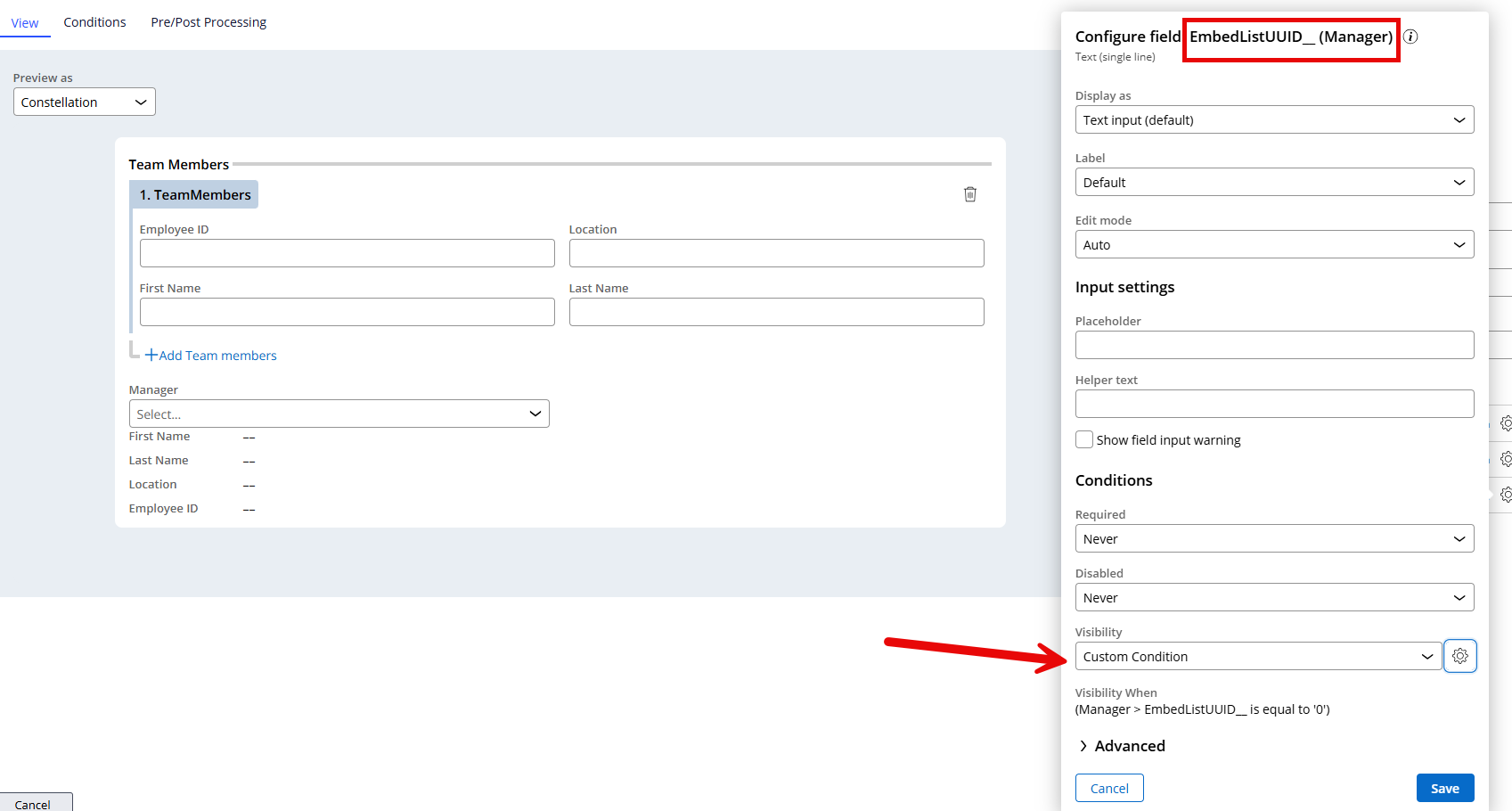
- Add a new field:
- Property: Manager.EmbedListUUID__
- Display: Text (single line)
- Set a visibility condition such as EmbedListUUID__ ==”0”
⚠️ Do not use a When rule set to Never — this does not work for this scenario.
Result
- EmbedListUUID__ is included in the view
- The form submits successfully
- The combo box works correctly with embedded data records
Summary
You have learned how to:
- Configure an embedded data list as a combo box source
- Store a selected record using a single-record embedded data field
- Resolve common submission errors related to embedded list UUIDs

Pegasystems Inc.
SE
@machpThanks for the article! Nice to see how we are able to use case data as source. Is there any way we could also use case data as source for other things like data references and queries? It would be useful to be able to use case data and not only data objects as source for lists and references when I already have the data in the case context I'm in.
Pegasystems Inc.
PL
@LantzAndreasI’m not aware of such features today, but it would indeed be great to have. Could you share a bit more business context or a concrete example of what you’re trying to achieve? That would help clarify the use case and better understand the need.
Pegasystems Inc.
SE
@machp We have quite a few scenarios where we use case data in our queries. For example: Inside a list of transaction groups we query a subset of transactions based on filtering criteria. These transactions are not data instances but rather case data. In this case we need to build a data page that first fetches the case data then post-processes out the filtered list of transactions from this case data.
It would be great if we had a more intuitive way of selecting a context for our reference/query props. Currently it's only data pages, but perhaps we could have a config letting us choose "case" as the context for the source.

Novitates
IN
Appreciate the time and effort you’ve put into showcasing the detailed implementation around EmbedListUUID__. This post inspired me to spend some time exploring repeating views and related patterns in more depth.
That got me thinking—if we were to implement the same requirement in a slightly different or alternative way, how might that look?
Below is an alternative implementation that came out of my technical curiosity 😊. It may not be a perfect approach and could have a few UX-related trade-offs, but I wanted to share it with the community to exchange ideas. I’d love to hear your thoughts, feelings, or suggestions.
This implementation primarily relies on the pyRefreshData data transform of the work class to handle actions such as entry addition, employee selection, manager selection, and so on. For the Manager link, I’ve used a single-page data reference, and Show Input Warning is leveraged for validations. Other than that, the overall behavior remains similar, with a slightly different UI approach.
@LantzAndreas — it would be great if you could share a simple real-time use case that reflects the requirement you’re aiming to solve.
Happy exploring! 🚀
Regards
JC
Pegasystems Inc.
PL
Nice alternative approach—thanks for sharing!
I especially like the checkbox-based idea. In a real-life scenario, the checkbox alone would often be enough to capture user intent, and the combo box or display field might not even be needed upfront.
The actual manager field could then be shown later in the flow or in an overview/summary step instead of being displayed immediately. This helps keep the UX simpler, of course depending on the specific requirements.
Anyway, I believe both approaches will be useful for our readers 🙂
Just as a remark—something that may not be obvious and personally confused me while testing this feature—is that when using Field Warnings, the same validation conditions still need to be repeated in the Flow Action ➝ Validate rule in order to actually prevent submission with incorrect inputs.
Best regards,
Novitates
IN
Yeah, both approaches are fine depending on the intended business requirement.
To the best of my understanding, Field Warnings and UI-level validations in Constellation are primarily meant for user guidance, not enforcement.
If the validation is simple and purely client-side—for example, based only on the values entered on the form and expressible through a When rule—then using Show Input Warning, Required, Disabled, or Visibility conditions is perfectly fine. These help in:
- Giving immediate feedback to users
- Highlighting incorrect or missing inputs
- Preventing users from interacting with fields when conditions are not met
However, it’s important to note that field warnings do not block form submission. They are advisory in nature and can be bypassed (intentionally or unintentionally).
For validations that must strictly prevent case progression, the logic should be implemented in a Validate rule associated with the Flow Action. This is especially critical when:
Yeah, both approaches are fine depending on the intended business requirement.
To the best of my understanding, Field Warnings and UI-level validations in Constellation are primarily meant for user guidance, not enforcement.
If the validation is simple and purely client-side—for example, based only on the values entered on the form and expressible through a When rule—then using Show Input Warning, Required, Disabled, or Visibility conditions is perfectly fine. These help in:
- Giving immediate feedback to users
- Highlighting incorrect or missing inputs
- Preventing users from interacting with fields when conditions are not met
However, it’s important to note that field warnings do not block form submission. They are advisory in nature and can be bypassed (intentionally or unintentionally).
For validations that must strictly prevent case progression, the logic should be implemented in a Validate rule associated with the Flow Action. This is especially critical when:
- The validation involves complex business logic
- Data must be verified against database records
- An external integration call is required
- The rule must be enforced consistently regardless of how the case is updated (UI, API, background processing, etc.)
Best practice in Constellation is to:
- Use field-level warnings for better UX and early feedback
- Use Flow Action Validate rules (or case-level validations) for authoritative enforcement
This way, you avoid duplicating logic unnecessarily while still ensuring data integrity and consistent rule enforcement across all entry points.
Hope this clarifies
Regards
JC

StellarNexus Consulting UG
DE
@JayachandraSiddipeta I think this would be my first approach, given the requirement. However, since there is a possibility of using an embedded object directly as the source for a combo box, this exercise by @machp uncovered an issue in the platform. Good work! It would be better if a patch is released.