Conversation

Labb Consulting
GB
Last activity: 1 Nov 2025 1:47 EDT
Displaying paragraph/rich-text content within a view
Hi all,
My requirement is to have read-only paragraph content displayed within a view outside of the instructions section (for example, underneath 2 text inputs)
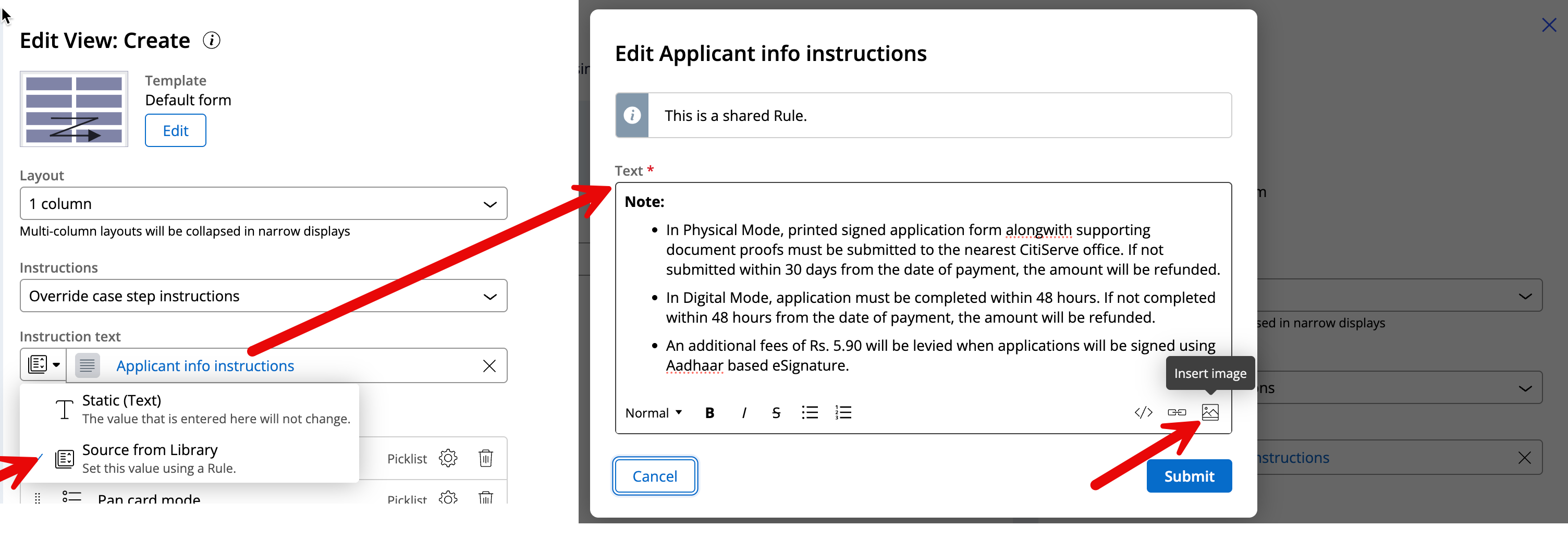
At the moment there doesn't appear to be a way to do this in 24.2. In 24.1 it was possible to use an empty embedded view with the instructions populated but that workaround doesn't appear to function anymore.
Key part of my requirement is that I do not want to display a heading, or label above this content. This is to be used in a customer facing disclaimer which does not require a heading.
Custom component is a route that can work for this - but I want to know if there is a preferred OOTB approach, or any other options.
Thanks in advance!

Pegasystems Inc.
PL
@Phill99JHi, how about using banner component? https://pegasystems.github.io/constellation-ui-gallery/?path=/docs/widg…
Labb Consulting
GB
@Kamil Janeczek I thought about it and I am utilising Banner Input in other scenarios. Banner itself would not be appropriate been a widget rather than field - but the 2 things the banner input is missing for me in it's current version:
- An "unstyled" option, in the case of a customer facing disclaimer text for example rather than a warning/alert with an icon. I already utilise Info and Urgent so I could hook onto another version if I really needed to.
- A way to utilise paragraph/rule input rather than text so I can localize
Pegasystems Inc.
PL
@Phill99Jyou are right in terms of usage of Banner widget.
The challenge you have currently, hopefully is solved in Pega 25 with Dynamic Text.
Labb Consulting
GB
@Kamil Janeczek Ok cool will take a look on Community Edition and give it a go. Thanks

PNC
US
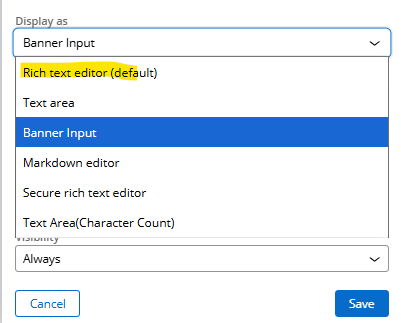
@Phill99J Hi , We had a similar requirement to display some text without any heading or label. We followed below approach
1. Create a Text property with UI control as 'pxRichTextEditor'
2. Refer this property in a view and select 'Display as' according to your requirement.
3.Set the value (whatever text you want to display on screen) for this property in pre data transform.

Pegasystems Inc.
GB
@Phill99J the Constellation Design System has five places for showing information in context to a business user:
- Assignment instructions - this shows up at the top of a form.
- Configured in the top level View
- Helper text on a field - this shows up as helper text under the field.
- Configured in a View, gear icon on the property
- Instructions on a Form Group.
- Configured in the View, gear icon on the Form Group
- Additional Information on a field- this shows up as an Information Icon, once clicked it will show the text
- This can be found in the advanced section when creating a new field in the Data Model Tab of a Case or Data Object
- Contextual message to a field - a warning shown based on conditions
- New to infinity '25
IF you are '24 then option 4 probably is your best OOTB option, maybe option 2 or 3?