
Conversation

Pegasystems Inc.
PL
Last activity: 2 Jan 2026 15:50 EST
Multi-step Forms, Hierarchical Forms and Parallel Processes
Purpose:
There are multiple ways Pega can help manage complex data collection assignments. The most straightforward approach is to split a form into multiple, conjoined screens—also known as a Screen Flow or Multi-step Form. Screen Flows were already available in the UI-Kit era and are still supported in Constellation; however, there are some differences in how they work.
In this article, we discuss those differences and present alternative approaches that can be used to achieve the business outcomes the customer needs.
Mutli-step Form:
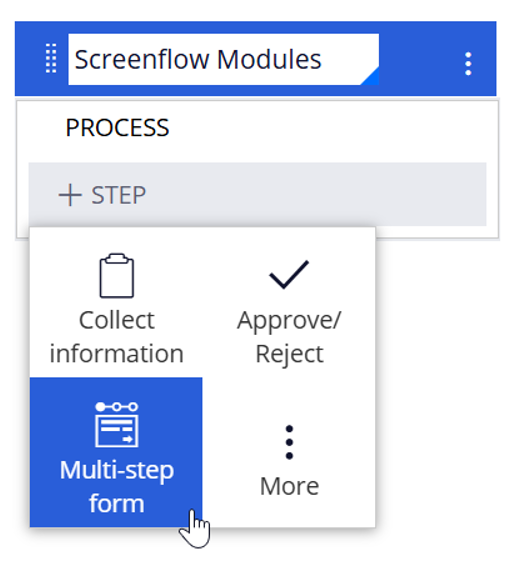
Creating a Multi-step Form in Constellation is very easy. Within a given stage, under a process, we add a new "Multi-step Form" and then add assignments for each screen we want to present to the user.
At runtime, the user sees a navigation trail with all the steps they need to complete for the given Multi-step Form. They can track their progress, see which steps are already completed, and identify upcoming ones. They can also navigate to the previous step using the "Back" button.
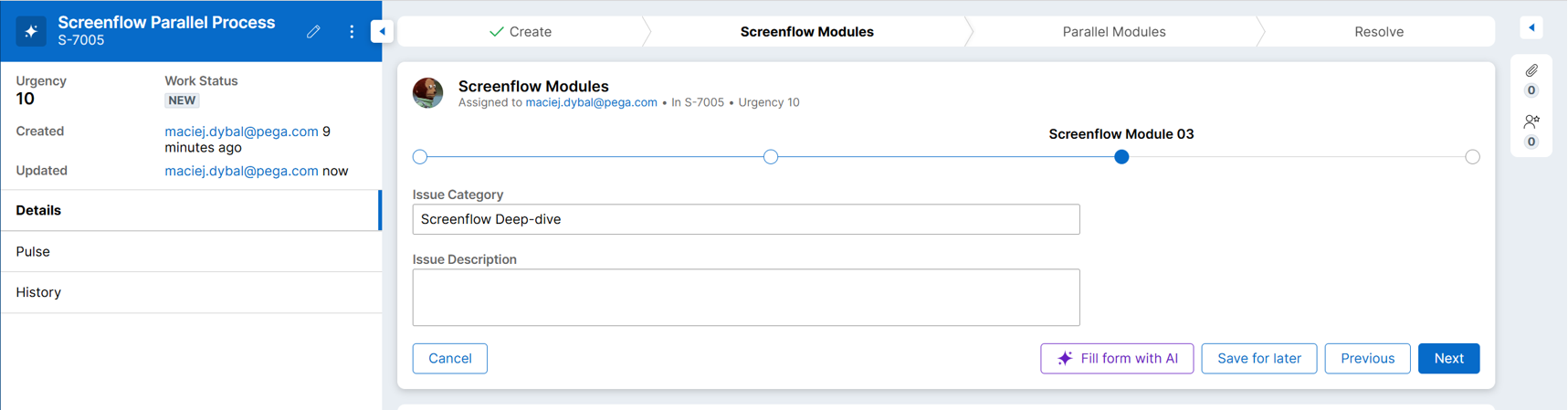
There are, however, significant differences between how these screens worked in the Traditional UI and how they work in Constellation:
-
Users cannot jump forward or backward between non-consecutive screens—only one step back or forward is allowed.
-
The "Allow Errors" option is not supported. Validation is triggered when leaving a step, preventing the user from progressing if errors are detected.
-
The "Save on last" step option is not supported. The case is persisted after each step.
While Multi-step Forms may evolve in the future to include additional features, Pega Infinity currently offers other ways to configure complex forms and split them into smaller, more easily digestible chunks.
Hierarchical Form:
A Hierarchical Form can be used as an alternative to a Multi-step Form. It allows us to separate a complex form into smaller, contained parts. The user is presented with a single assignment containing tabs with specific views and forms.
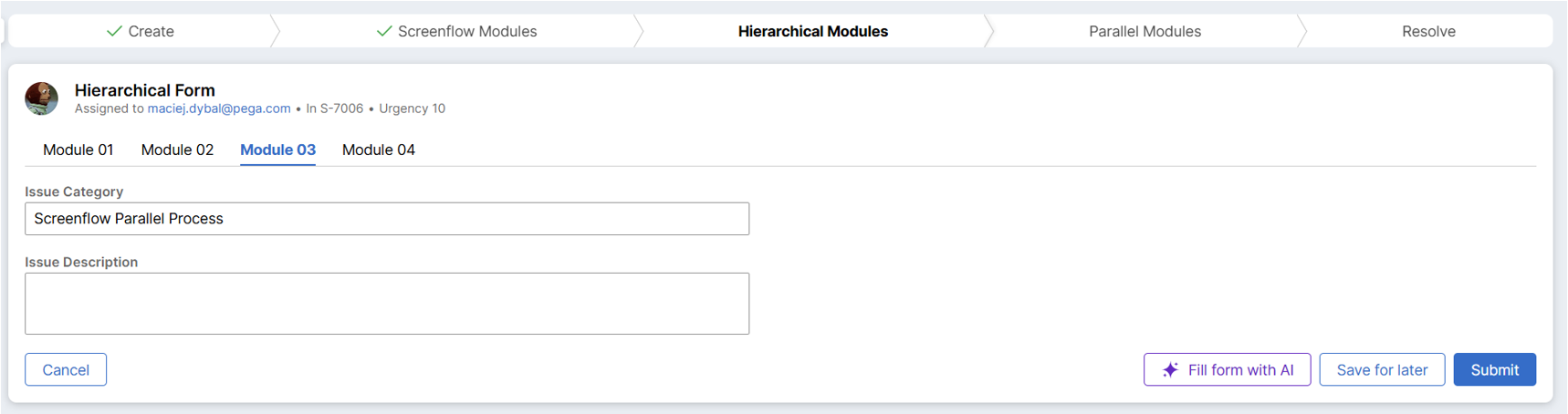
Users can complete the tabs in any order, freely switch between them, fill them in partially, and return later. Validation is triggered upon submission of the entire assignment, and data is persisted when the user submits or uses the "Save for Later" button.
However, this approach may not be suitable for every scenario:
-
Tabs should present independent data sets, as there is no guaranteed order in which the user fills in the forms (e.g. we cannot assume that data in Module 01 is available for calculations in Module 03).
-
There is no possibility to trigger post-processing or validation when switching tabs. This is especially important for calculated fields and visibility conditions.
-
For complex forms, it can be overwhelming for users to learn about missing properties or failed validations across multiple tabs only at submission time.
-
There is no clear indication of which tabs are already “done.”
Parallel Processes:
The Parallel Process approach can help alleviate some of the issues mentioned above. It combines the freedom to choose which part of the work to complete first with the ability to validate smaller chunks of data and run post-processing as needed. It also allows work to be split between different users, enabling parallel execution.
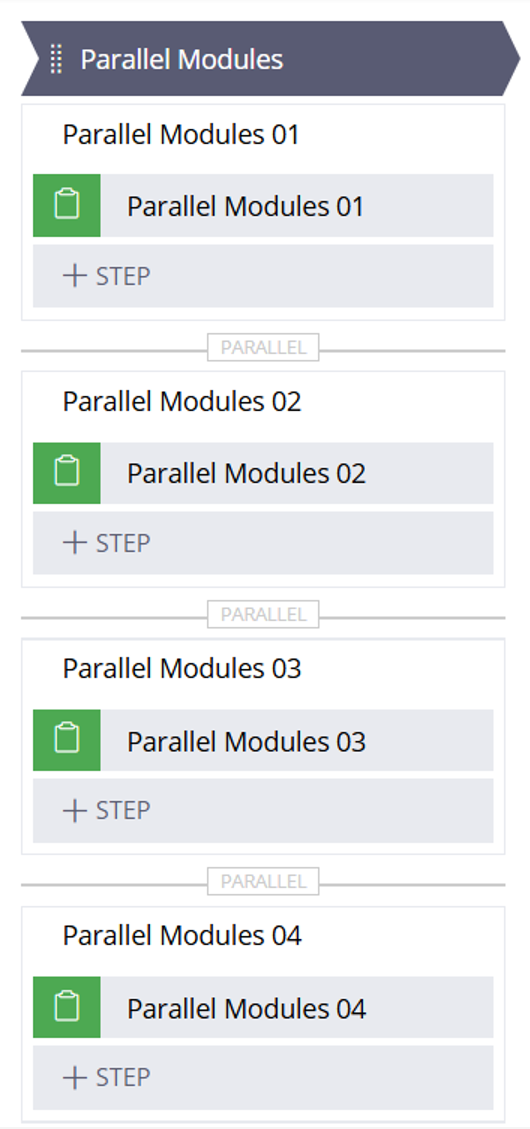
As shown in the screenshot above, Parallel Processes also support more complex configurations and mix-and-match approaches. For example, the form in Module 01 can be split into two assignments with validation and post-processing between them.
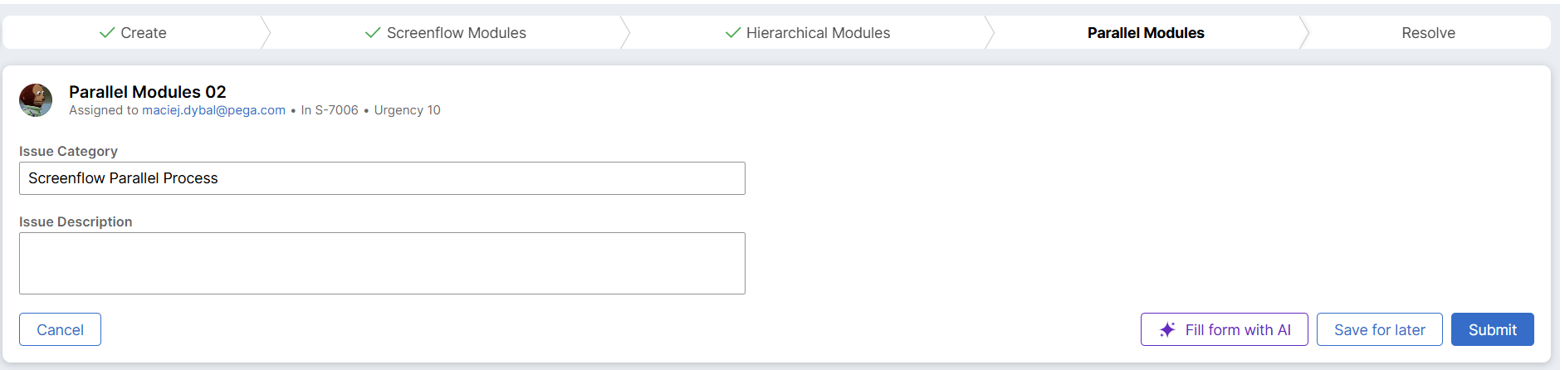
Similar to the Screen Flow approach, users can track which tasks are still pending and which have been completed.
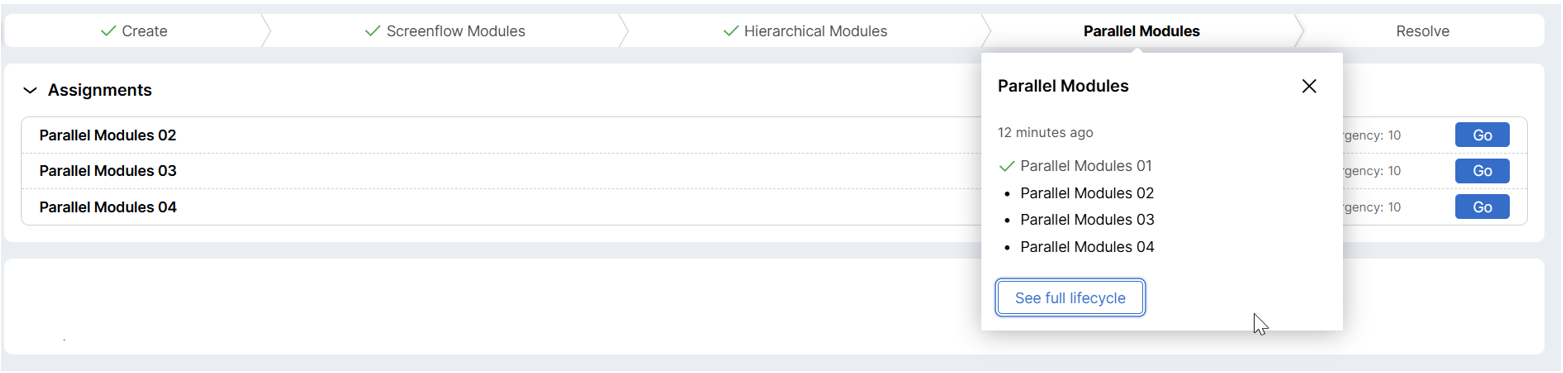
This approach offers the most flexibility for handling complex forms, but there are still some considerations and limitations:
-
Unlike Screen Flows and Hierarchical Forms, there is no easy way for users to re-open or return to a submitted screen. Custom Local Actions must be created if this functionality is required.
-
As with Hierarchical Forms, processes should handle independent data sets, since there is no enforced completion order.
-
Currently, there is no configuration option to control the sorting order of assignments in the assignment list. Future releases may change this behavior, but at present the order is effectively random.
Split For Each:
There is one more specific business scenario that may require creating multiple screens or assignments: processing a list of instances that share a similar process and forms but must be completed individually (e.g. entering personal information for multiple family members in a travel insurance case). Split For Each addresses this requirement.
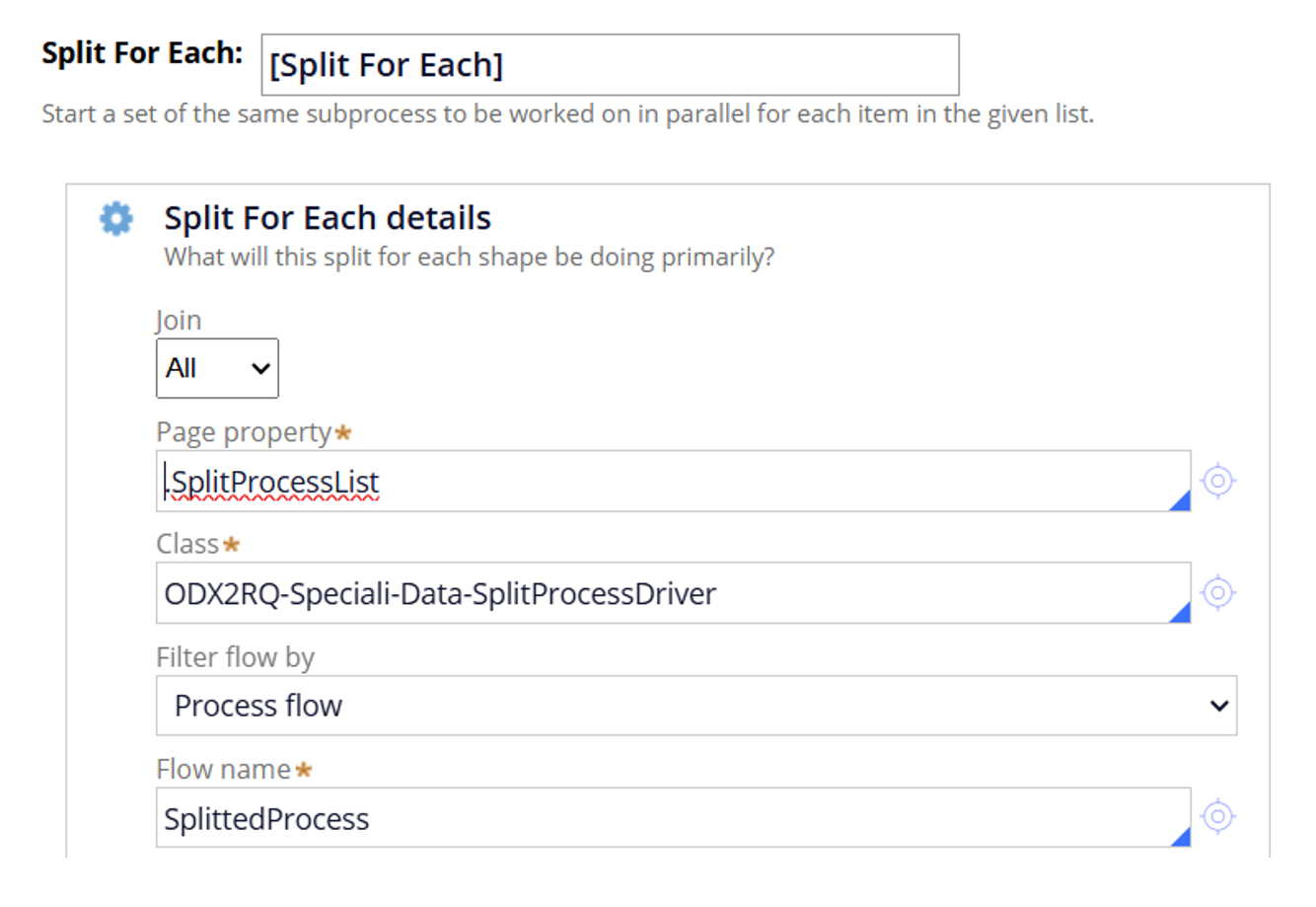
This configuration allows the creation of a dynamic number of assignments based on supporting data and provides an end-user experience similar to that of Parallel Processes. It offers similar flexibility in submission order, the ability to extend the process for more complex scenarios, and "Save for Later" support.

It is worth noting that, unlike Multi-step Forms and Parallel Processes, there is no visual indicator showing which steps have already been completed.
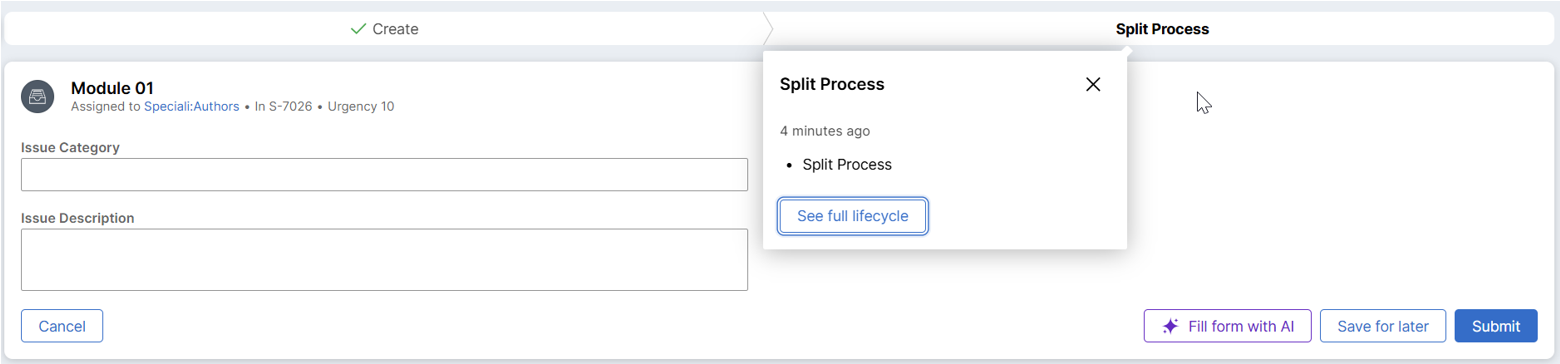
Other important considerations include:
-
Re-opening a submitted assignment requires a custom Local Action.
-
As an Advanced Step, this approach requires Dev Studio configuration.
-
Assignment order is not currently configurable, similar to Parallel Processes.
-
Configuring custom assignment names requires extending the "NewDefaults" extension point (class: Assign-).
Summary:
Pega Infinity offers a variety of approaches to meet different business requirements. In the complex world of digital transformation, there is no “one-size-fits-all” solution for every process. That is why it is crucial to understand the underlying business need and select the approach that best aligns with the desired outcome.
It is also important to stay current with the latest versions of Pega Infinity, as existing solutions continue to evolve and new capabilities are introduced with each release.


Pegasystems Inc.
GB
@MACIEJ Dybal great stuff :)
A few other points to round out general understanding:
- Multi-step forms are designed to be completed by a single user. They can not be transferred natively (there are some funky approaches to implement this in the ecosystem)
- Hierarchical forms is presentational only, By this, I mean that all views in the hierarchy are loaded when the assignment is loaded. If you come from UI Kit background, there is not deferred loading options here. Just like, as you say, there is no pre/post processing.
- IF your form is large set of data, perhaps with API's calling values for drop downs, you can bump into performance issues. This isn't new, UX and form design have always been important but those new to Constellation sometime hit this as unexpected as we assume tabs have deferred loads in them.