Conversation

Cognizant Technology Solutions Benelux b.v
NL
Last activity: 7 Dec 2025 3:48 EST
Possible methods for initiating cases in Constellation using a low-code approach from APP Studio
In the latest version of Pega Infinity, there are various methods to initiate a case instance from APP Studio, which supports a low-code approach and aligns with a market-ready objective through Constellation. In the latest version of Pega Infinity, there are various methods to initiate a case instance from APP Studio and also edit those instances, which supports a low-code approach and aligns with a market-ready objective through Constellation.
- Widgets
- Table view of Case via landing page or case view
- Action menu
- Create menu in portal
- Data instance landing page
- Report dashboard
1) Version
Available in Pega Platform version 23.1 and later.
2) Problem Statement — Why?
In the traditional approach, cases can be initiated from process flows, the create menu, local actions, and through both manual and automatic child case initiation. This traditional method may impact low-code design and affect the citizen developer ecosystem.
3) Key Benefits
-
Low-code approach via APP Studio.
-
Increased confidence for citizen developers during development.
-
End-user UI/UX experience.
4)Prerequisites
-
Pega Platform ’23 and higher (Constellation) in your environment.
-
Privilege to access App Studio.
5) Configuration Steps All the configuration below are done through APP Studio
-
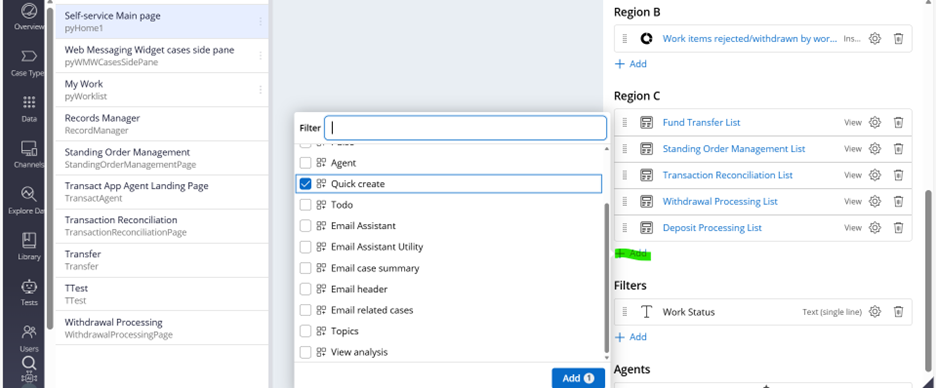
Open Portal -> Landing Page -> Select Landing Page -> Preferred Region -> Add Widget -> Select “Quick Create”
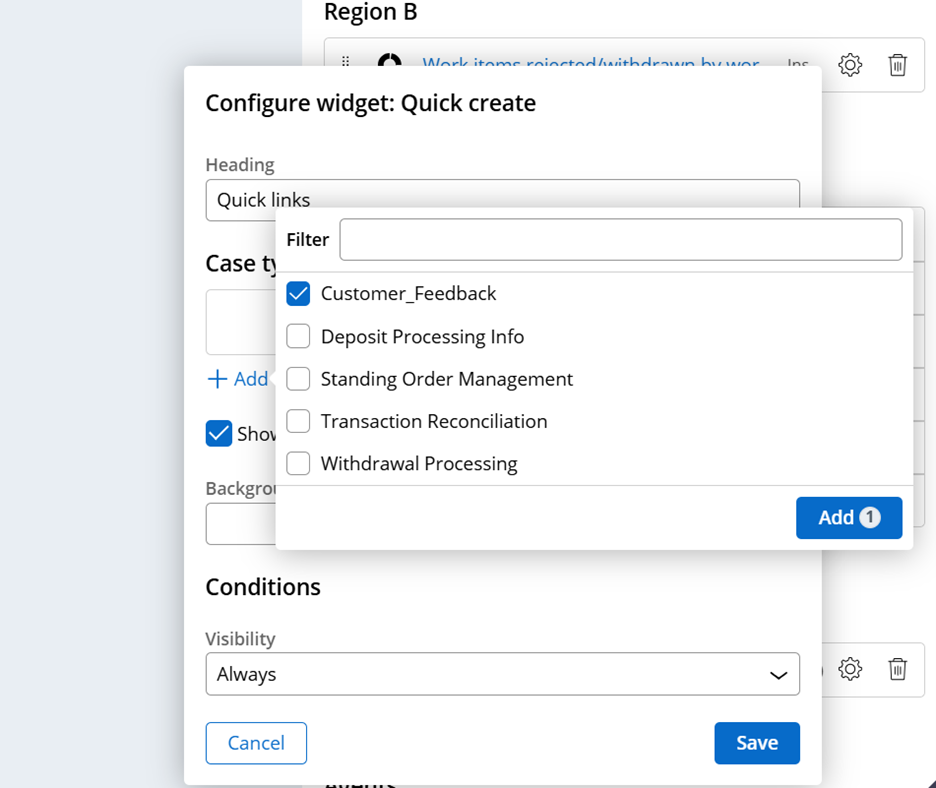
In the Configure Widget, selecting a required case type is optional; otherwise, all case types available in the application will be displayed as default.
-
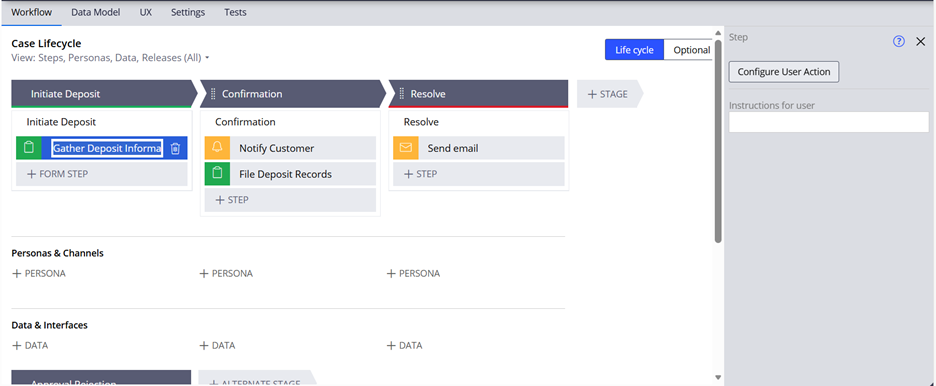
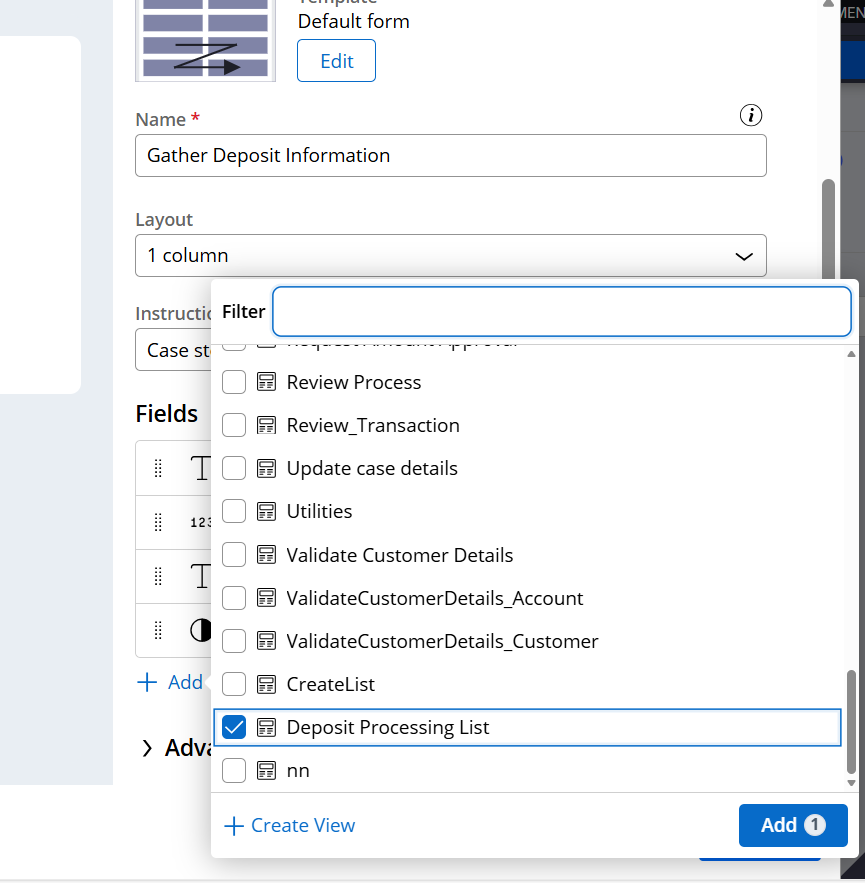
Select Case Type -> Select the assignment -> Configure the view -> Select +Add under Fields -> Choice the List data page of the required Case type
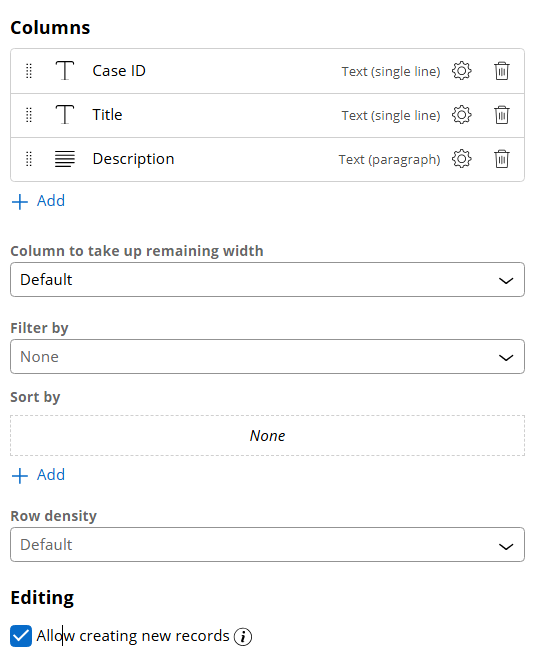
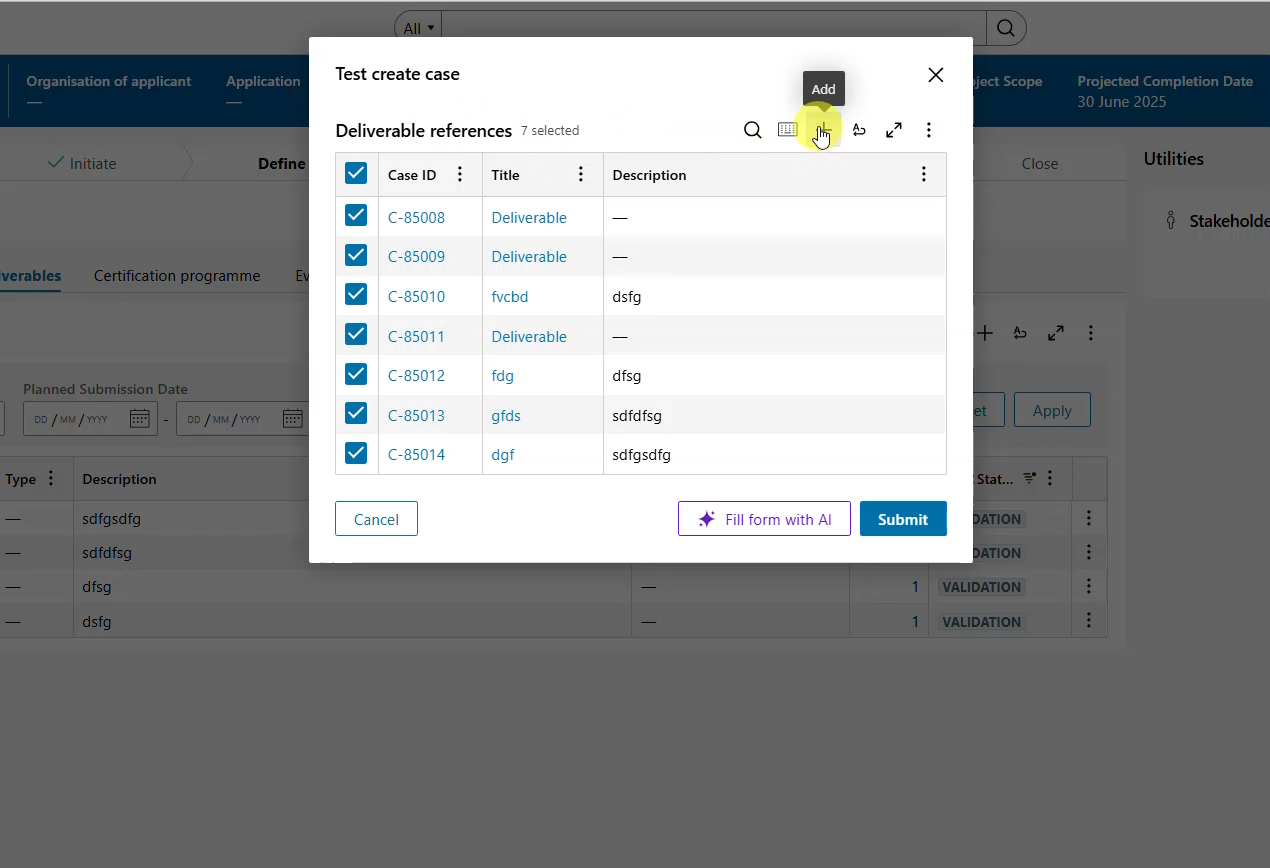
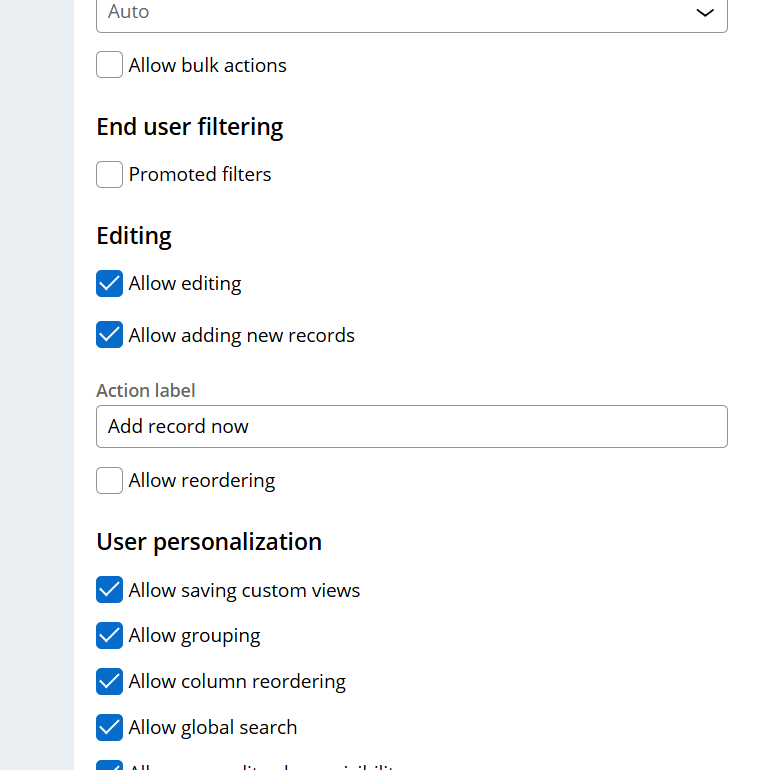
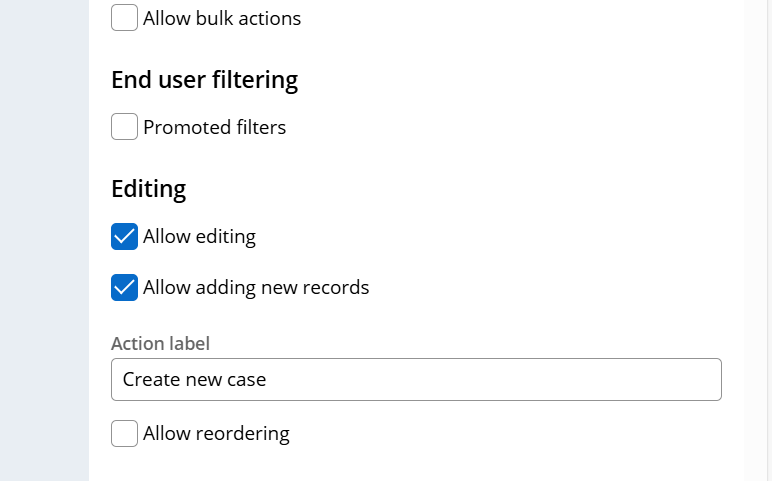
In the Configure view, enable Add record checkbox
According to the case flow configuration, a case can be created from a case instance.
or
From Data object-> Action-> Create Case-> Select “Case Type” and field to store Data reference-> Save, Based on the configuration of the data object, a case can be created from the data instance landing page.
-
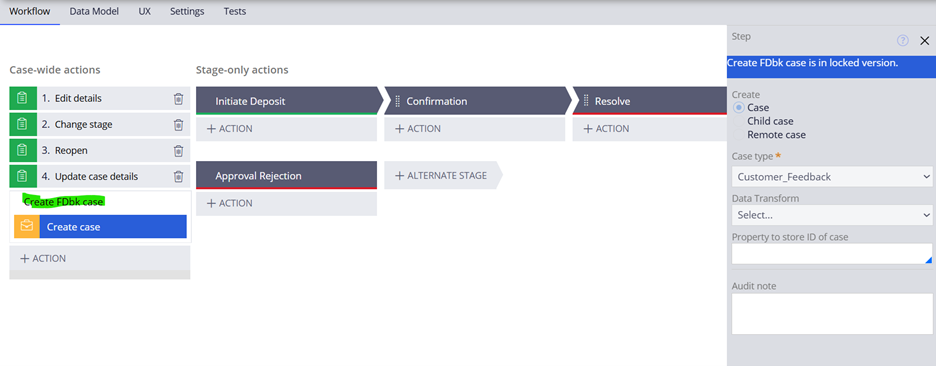
By optional process, Select Case Type -> Click Optional process -> Either in case wide or Stage wide -> Click +Action and select process -> Add Step -> Select Automation and choice Create Case
In the Configure panel, Select required Case Type.
-
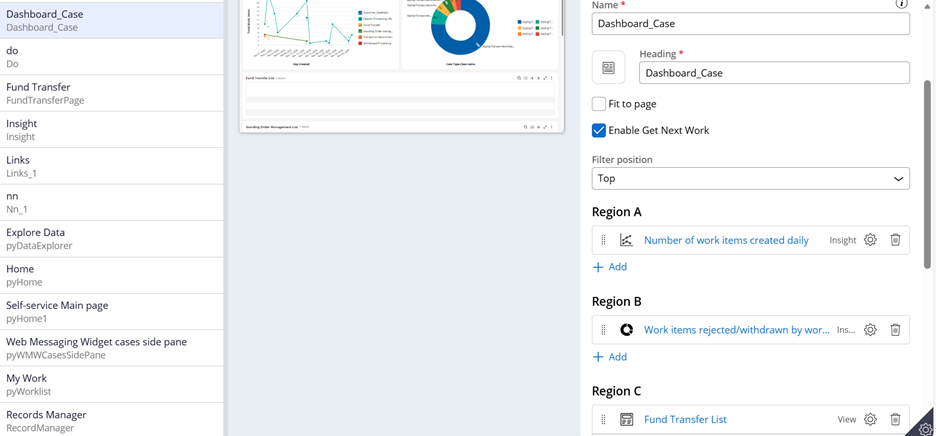
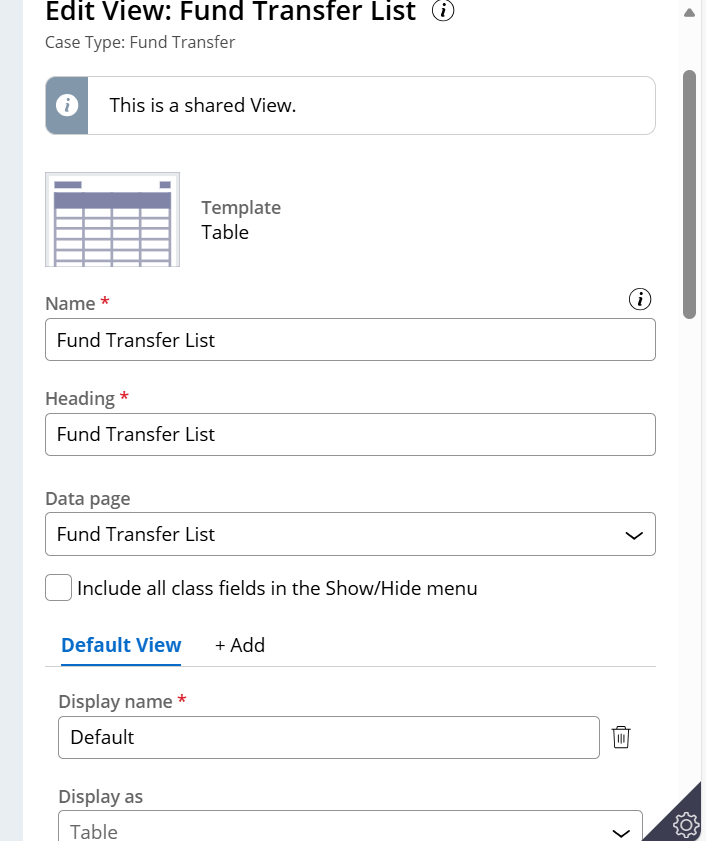
Creating case from dashboard, Goto “Channel”-> Select Portal -> Choice the Landing page of report dashboard -> Add the List data page of the required Case type
In the Configure view, enable Add record checkbox.
6) References & Further Learning
7) Constellation 101 Series
Enjoyed this article? See more similar articles in Constellation 101 series.

Pegasystems Inc.
GB
@PurushothamanK great to have a list of all the OOTB ways to do this. UI Kit, Actions sets, Activities, Modals, Harnesses, Clipboard Pages and Refreshes; this quickly become an advanced topic and one less than optimum to maintain and update.

Pegasystems Inc.
NL
@PurushothamanK i am using the listview a lot. When you create a new case from a listview, I often need to relate the new created case with the case in which the list was presented. Here i found a way to deal with this:
- Create a case reference field in the case type you are creating (for example "Created from case")
- Run a data transform inside the create stage of this case type
- Set the CreatedFromCase.pyID property with .pyAddCaseContextPage.pyID (this property gets set automatically with the pyID of the case in which the listview was presented)
- Change the listview data page to filter only the cases that match the pyID of the current case so that only the related cases are shown (using dev studio)
Pegasystems Inc.
NL
@PurushothamanK another way to create cases is by using the Case Reference field (as of 25.1). This allows app designers with an additional option to allow users to create a new case from a Case Reference field. Also here you need to tweak your datapage that lists your selectable options if you need to see only the related cases.